将 VM 转换为 XenServer

如果我们想转换 VMware Server VM, VMware ESX, Microsoft 虚拟服务器或 Microsoft 虚拟 PC 到 Xen 虚拟设备格式 (XVA) 我们必须使用 v2xva Virtual Disk Migration Utility 应用程序 (一个 V2V 应用程序). 我们去他们的官方网站并根据我们的作系统下载二进制文件或源代码. (HTTP 协议://tx.downloads.xensource.com/products/v2xva/), 请注意,只有将 Windows 虚拟机从 S.O 转换才有用. 客户端,然后以管理员身份从 Windows XP/2003 R2 或 Vista 运行它.
一旦下载并解压, 我们执行它.

如果我们使用 /y 参数运行它,它会显示帮助和可能的命令.
虚拟磁盘迁移工具版本 1.1: 一个将 VMware 和 Microsoft Virtual Server/Virtual PC 虚拟机转换的 V2V 工具 (其中安装了 Microsoft Windows 虚拟机) 转换为 Xen 虚拟设备 XVA) 格式.
用法:
v2xva.exe [/clean] [/详细:高声|较少|低声] [/vhdwindir:VHD 启动分区的 Windows 目录路径] /配置:{配置文件} [/输出:XVA 文件输出目录路径]
选项:
/clean – 重置 VMware VMDK 转换时虚拟磁盘迁移工具设备驱动程序状态. 此选项对 Microsoft VHD 转换没有任何影响. 其他指定选项将被忽略.
/详细 – 在转换过程中输出更多信息
高声: 在转换过程中输出所有信息
较少: 在转换过程中输出较少信息
低声 : Output minimal information as conversion proceeds (违约)
/vhdwindir – Path to Windows Directory of mounted VHD boot partition
Other parameters, except /verbose, are ignored
/配置 – VMware or MSVS config file
/输出 – Output directory where converted XVA files will be placed
Ignored for VMware VM conversion
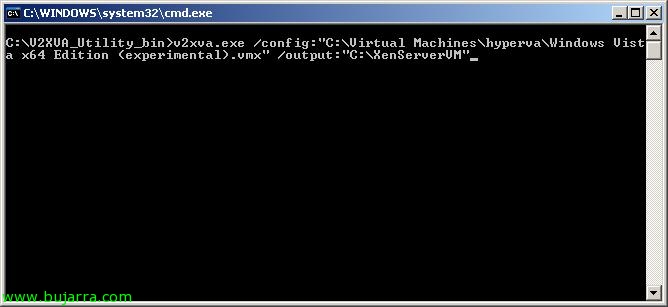
Simplemente para convertir una MV ejecutamos el comando con el siguiente formato: v2xva.exe /config:”PATH_AL_ARCHIVO_VMX_O_VMC” /输出:”PATH_DESTINO”

… esperamos mientras la convierte…
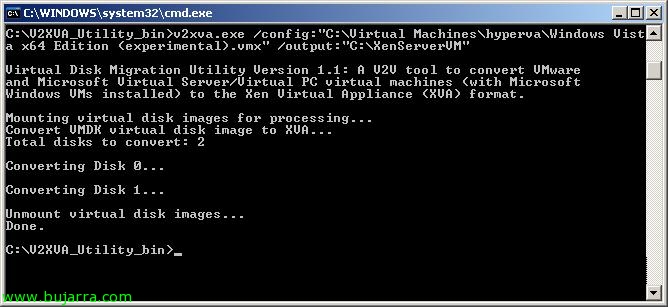
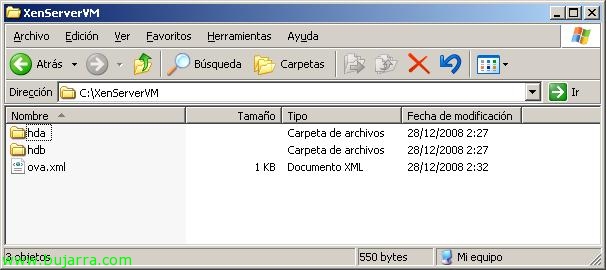
Tras unos minutos la tendremos lista! ahora sólo queda llevarla hasta el almacenamiento del XenSever e importarla.
🙂
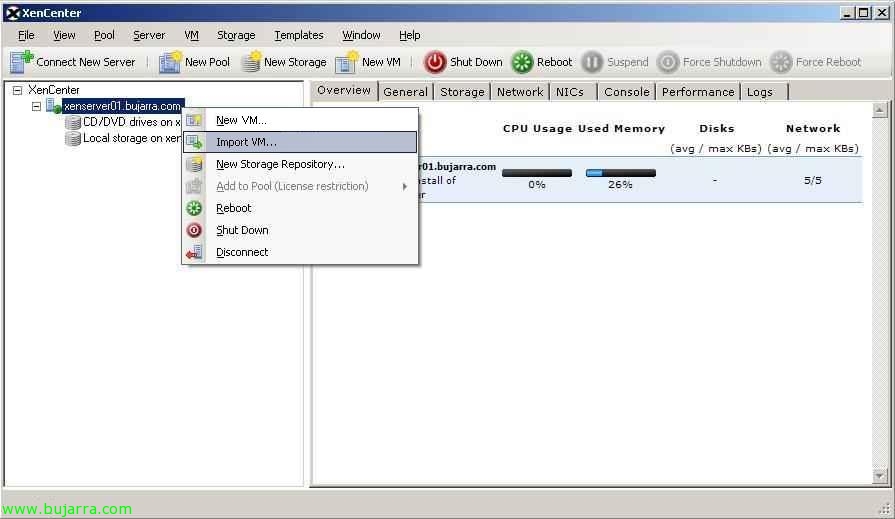
Y desde el servidor XenServer con botón derecho “Import VM…”
Una cosa que debemos tener en cuenta, si la MV origen es del formato Microsoft Virtual Server o Microsoft Virtual PC, debemos ejecutar las siguientes tareas antes de convertirlo:
使用 vhdmount 工具挂载包含启动的 .VHD 磁盘.
使用 v2xva.exe 并带上 /vhdwindir 参数,指示 %windir% 目录的完整路径.
卸载磁盘
使用 v2xva.exe 正常进行转换
例:
vhdmount.exe /m “D:MSVirtualServerWindows Server 2003WindowsDisk-1.vhd” F:
v2xva.exe /vhdwindir:”F:窗户”
vhdmount.exe /u “D:MSVirtualServerWindows Server 2003WindowsDisk-1.vhd”
v2xva.exe /config:”D:MSVirtualServerWindows Server 2003Windows.vmc” /输出:”和:XEWindows Server 2003″