Konfigurieren des Citrix-Clients mithilfe von Active Directory-Richtlinien

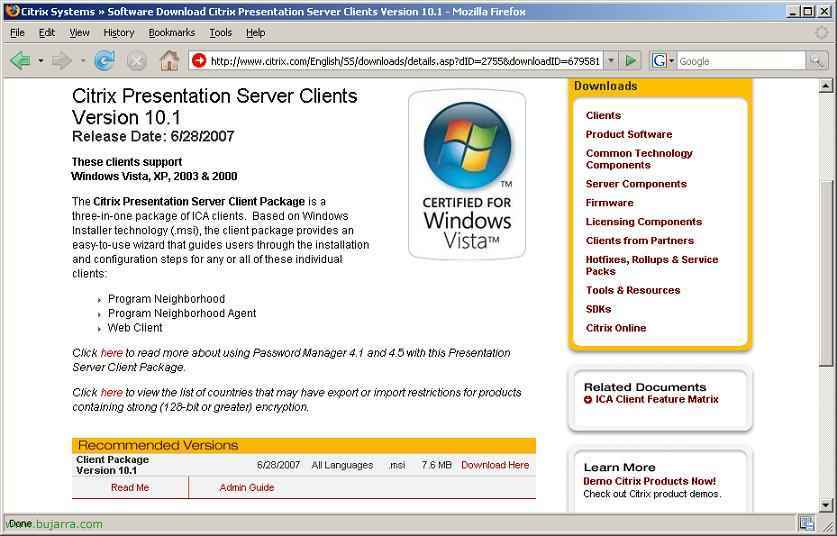
En este documento se explica cómo configurar ciertos aspectos del cliente de Citrix, esto afectaría a clientes con la versión superior a la 10.x. Lo que habría que hacer es descargarse una plantilla (icaclient.adm – HIER), y agregarla a la directiva que nos interese, editar las configuraciones que deseemos por equipo o por usuario y aplicarla.
Vorlage importieren – HIER
Beschreibung der Vorlage und ihrer Richtlinien – HIER

In diesem Dokument wird unter Verwendung der Konsole erklärt “Verwaltung von Gruppenrichtlinien”, dazu muss diese Konsole nicht installiert sein, es wäre egal, man greift auf eine ähnliche Weise über die OU in der Konsole zu “Active Directory-Benutzer und -Computer”.

Sobald die Konsole geöffnet ist, man geht zur Organisationseinheit und bearbeitet die Richtlinie, die uns interessiert, oder erstellt eine, um sie auszuprobieren, das ist in meinem Fall so, über die OU, die uns interessiert, mit der rechten Maustaste “Erstellen und verknüpfen Sie hier ein Gruppenrichtlinienobjekt…”

Wir geben Ihnen einen aussagekräftigen Namen, “Annehmen”

Und wir bearbeiten sie, hierfür, über die Richtlinie mit der rechten Maustaste “Redigieren…”,

Jetzt werden wir die Citrix-Vorlage einfügen, Briefumschlag “Einrichtung der Ausrüstung” > Klicken Sie mit der rechten Maustaste auf “Administrative Vorlagen” > “Hinzufügen oder Entfernen von Vorlagen…”

Wir sehen, welche wir haben, und fügen die neue mit ein “Hinzufügen…”

Wir suchen die Vorlage (icaclient.adm – HIER) die wir heruntergeladen haben, wir wählen sie aus und öffnen sie,

Wir sehen, dass sie da ist, perfekt, dieses Fenster schließen wir,
Beschreibung der Vorlage und ihrer Richtlinien,

Jetzt haben wir bereits verschiedene Richtlinien von “Einrichtung der Ausrüstung” > “Administrative Vorlagen” > “Citrix Components”. In “Presentation Server Client” wir haben eine Richtlinie namens:
“Clientverbindungen zulassen”
Verwenden Sie diese Richtlinie, um Verbindungen vom Citrix Presentation Server-Client zu aktivieren oder vollständig zu deaktivieren.
Wenn diese Richtlinie nicht konfiguriert ist, wird der Client Verbindungen zu Servern zulassen.
Wenn diese Richtlinie aktiviert ist, verbindet sich der Client nur mit einem Server, wenn die “Client aktivieren” Option ausgewählt ist, und wenn seine Versionsnummer größer oder gleich der “Mindest-Clientversion”.
Wenn die Richtlinie deaktiviert ist, wird der Client keine Verbindungen zu irgendeinem Server zulassen.

In “Citrix Components” > “Presentation Server Client” > “Netzwerkrouting” wir haben mehrere Richtlinien:
“TLS/SSL-Datenverschlüsselung und Serveridentifikation”
Verwenden Sie diese Richtlinie, um die TLS/SSL-Optionen zu konfigurieren, die dazu beitragen, dass der Client sich mit echten Remoteanwendungen und -desktops verbindet. TLS und SSL verschlüsseln die übertragenen Daten, um zu verhindern, dass Dritte den Datenverkehr einsehen oder ändern. Citrix empfiehlt, dass Verbindungen über nicht vertrauenswürdige Netzwerke TLS/SSL oder eine andere Verschlüsselungslösung mit mindestens gleichem Schutzgrad verwenden.
Wenn diese Richtlinie aktiviert ist, Der Client wendet diese Einstellungen auf alle TLS/SSL-Verbindungen an, die vom Client durchgeführt werden. Das Kontrollkästchen “SSL für alle Verbindungen erforderlich” kann verwendet werden, um den Client zu zwingen, das TLS- oder SSL-Protokoll für alle von ihm durchgeführten Verbindungen zu verwenden.
TLS und SSL identifizieren entfernte Server anhand des allgemeinen Namens (Common Name) auf dem Sicherheitszertifikat, das vom Server während der Verbindungsverhandlung gesendet wird. Normalerweise ist der allgemeine Name der DNS-Name des Servers, zum Beispiel www.citrix.com. Es ist möglich, die allgemeinen Namen, mit denen der Client eine Verbindung herstellt, einzuschränken, indem eine durch Kommas getrennte Liste im Feld “Erlaubte SSL-Server” Einstellung. angegeben wird. Beachten Sie, dass eine Platzhalteradresse, zum Beispiel “*.citrix.com:443”, wird alle gebräuchlichen Namen, die enden mit, abgleichen “.citrix.com”. Die in einem Zertifikat enthaltenen Informationen werden vom Aussteller des Zertifikats als korrekt garantiert.
Einige Sicherheitsrichtlinien haben Anforderungen in Bezug auf die exakte Auswahl der kryptographischen Verfahren, die für eine Verbindung verwendet werden. Standardmäßig wählt der Client automatisch entweder TLS v1.0 oder SSL v3.0 aus (mit Bevorzugung von TLS v1.0) abhängig davon, was der Server unterstützt. Dies kann auf nur TLS v1.0 oder SSL v3.0 eingeschränkt werden unter Verwendung der “SSL/TLS-Version” Einstellung.
Ähnlich, bestimmte Sicherheitsrichtlinien haben Anforderungen in Bezug auf die kryptographischen Chiffren, die für eine Verbindung verwendet werden. Standardmäßig verhandelt der Client automatisch eine geeignete Chiffre aus den fünf unten aufgeführten. Falls notwendig, ist es möglich, die Auswahl nur auf die Chiffren in einer der beiden Listen zu beschränken.
Regierungs-Chiffren:
TLS_RSA_WITH_AES_256_CBC_SHA
TLS_RSA_WITH_3DES_EDE_CBC_SHA
Kommerzielle Chiffriersuiten:
TLS_RSA_WITH_AES_128_CBC_SHA
TLS_RSA_WITH_RC4_128_SHA
TLS_RSA_WITH_RC4_128_MD5
Liste der Zertifikatssperren (ZERTIFIKATSPERRLISTE) Überprüfung ist eine erweiterte Funktion, die von einigen Zertifikatsausstellern unterstützt wird. Sie ermöglicht es, Sicherheitszertifikate zurückzurufen (vor ihrem Ablaufdatum ungültig zu machen) im Falle einer kryptografischen Kompromittierung des privaten Zertifikatsschlüssels, oder einfach einer unerwarteten Änderung des DNS-Namens.
Gültige CRLs müssen regelmäßig vom Zertifikatsaussteller heruntergeladen und lokal gespeichert werden. Dies kann über die Auswahl in “CRL-Überprüfung”
– Arbeitsunfähig: Wenn “Arbeitsunfähig” ausgewählt ist, wird keine CRL-Überprüfung durchgeführt.
– Nur lokal gespeicherte CRLs überprüfen: Wenn “Nur lokal gespeicherte CRLs überprüfen” ausgewählt ist, alle CRLs, die zuvor installiert oder heruntergeladen wurden, werden bei der Zertifikatsvalidierung verwendet. Wenn ein Zertifikat als zurückgerufen festgestellt wird, schlägt die Verbindung fehl.
– CRLs aus dem Netzwerk abrufen: Wenn “CRLs aus dem Netzwerk abrufen” ausgewählt ist, Der Client wird versuchen, CRLs von den relevanten Zertifikatsausstellern abzurufen. Wenn ein Zertifikat als zurückgerufen festgestellt wird, schlägt die Verbindung fehl.
– CRLs für die Verbindung erforderlich: Wenn “CRLs für die Verbindung erforderlich” ausgewählt ist, Der Client wird versuchen, CRLs von den relevanten Zertifikatsausstellern abzurufen. Wenn ein Zertifikat als zurückgerufen festgestellt wird, schlägt die Verbindung fehl. Wenn der Client keine gültige CRL abrufen kann, schlägt die Verbindung fehl.
“Vertrauenswürdige Serverkonfiguration konfigurieren”
Verwenden Sie diese Richtlinie, um zu steuern, wie der Client die veröffentlichte Anwendung oder den Desktop identifiziert, mit dem er eine Verbindung herstellt. Der Client bestimmt ein Vertrauensniveau, genannt “Vertrauensbereich” mit einer Verbindung. Der Vertrauensbereich bestimmt dann, wie der Client für die Verbindung konfiguriert ist.
Wenn diese Richtlinie aktiviert ist, Der Client kann gezwungen werden, eine Bereichsidentifikation mit der Option “Vertrauenswürdige Serverkonfiguration erzwingen” durchzuführen.
Standardmäßig, Die Bereichsidentifikation basiert auf der Adresse des Servers, mit dem der Client eine Verbindung herstellt. Um Mitglied des vertrauenswürdigen Bereichs zu sein, muss der Server Mitglied der Windows-Zone Vertrauenswürdige Sites sein. Sie können dies konfigurieren mit dem “Windows-Internetbereich” Einstellung.
Alternativ, zur Kompatibilität mit nicht-Windows-Clients, kann die Serveradresse speziell als vertrauenswürdig festgelegt werden mit dem “Adresse” Einstellung. Dies ist eine durch Kommas getrennte Liste von Servern, die die Verwendung von Platzhaltern unterstützt, zum Beispiel, cps*.citrix.com.
“Sitzungszuverlässigkeit und automatische Wiederverbindung”
Verwenden Sie diese Richtlinie, um zu steuern, wie der Client sich verhält, wenn ein Netzwerkfehler die Verbindung unterbricht.
Wenn diese Richtlinie aktiviert ist, der Client versucht nur wieder eine Verbindung zu einem Server herzustellen, wenn “Wiederverbindung aktivieren” ausgewählt ist. Standardmäßig werden drei Verbindungsversuche unternommen, dies kann jedoch mithilfe des “Anzahl der Versuche” Einstellung. Ähnlich kann die Verzögerung zwischen den Versuchen vom Standardwert von 30 Sekunden mithilfe des “Verzögerung zwischen den Versuchen” Einstellung.
Eine separate Einstellung, “SSL/TLS-Wiederverbindung aktivieren”, wird bereitgestellt, um die Wiederverbindung zu einem SSL/TLS-Server zu ermöglichen. Die Unterstützung für diese Einstellung hängt von der SSL-Serverkonfiguration ab.

In “Citrix Components” > “Presentation Server Client” > “Netzwerkrouting” > “Stellvertreter” wir haben mehrere Richtlinien:
“Client-Proxy-Einstellungen konfigurieren”
Verwenden Sie diese Richtlinie, um die primären Netzwerkproxies zu konfigurieren, die der Client beim Verbinden mit einer Remoteanwendung oder einem Remote-Desktop verwenden kann.
Wenn diese Richtlinie nicht konfiguriert ist, Der Client verwendet seine eigenen Einstellungen, um zu entscheiden, ob er über einen Proxyserver verbunden werden soll.
Wenn diese Richtlinie aktiviert ist, Der Client verwendet den Proxy, der basierend auf dem ausgewählten Proxytyp konfiguriert ist:
– Proxytyp: Keine: Wenn “Keine” ausgewählt ist, Der Client versucht, direkt zum Server zu verbinden, ohne einen Proxyserver zu durchlaufen.
– Proxytyp: Auto: Wenn “Auto” ausgewählt ist, Der Client verwendet die lokalen Maschinen-Einstellungen, um zu bestimmen, welchen Proxyserver er für eine Verbindung verwenden soll. Dies sind normalerweise die Einstellungen, die vom auf der Maschine installierten Webbrowser verwendet werden.
– Proxytyp: Skript: Wenn “Skript” ausgewählt ist, Der Client ruft eine auf JavaScript basierende “.pac” Datei von der in den “Proxy-Skript-URLs” Richtlinienoption angegebenen URL ab. Die “.pac” Die Datei wird ausgeführt, um zu ermitteln, welcher Proxyserver für die Verbindung verwendet werden soll.
– Proxytyp: Sicher: Wenn “Sicher” ausgewählt ist, Der Client wird den durch den “Proxy-Hostnamen” und “Proxy-Ports” Einstellungen. Das Aushandlungsprotokoll wird eine “HTTP CONNECT” Header-Anfrage mit der gewünschten Zieladresse verwenden. Dieses Proxyprotokoll wird häufig für HTTP-basierten Datenverkehr verwendet, und unterstützt GSSAPI-Proxy-Authentifizierung.
– Proxy-Typ: SOCKS/SOCKS V4/SOCKS V5: Wenn ein “SOCKEN” Proxy ausgewählt wird, führt der Client ein SOCKS V4- oder SOCKS V5-Handshaking mit dem durch die “Proxy-Hostnamen” und “Proxy-Ports” Einstellungen. Die “SOCKEN” Option identifizierten Proxy durch und erkennt und verwendet die richtige Version von Socks.
Für jeden Proxy-Typ, können Sie eine Liste von Servern angeben, die den Proxy nicht durchlaufen. Diese sollten in der “Bypass-Serverliste”.
“Client-Failover-Proxy-Einstellungen konfigurieren”
Verwenden Sie diese Richtlinie, um alternative Netzwerkproxies zu konfigurieren, die der Client verwenden kann, wenn der primäre Netzwerkproxy keine Verbindung zu einer Remote-Anwendung oder einem Remote-Desktop herstellen kann.
Wenn diese Richtlinie nicht konfiguriert ist, Der Client verwendet seine eigenen Einstellungen, um zu entscheiden, ob er über einen Proxyserver verbunden werden soll.
Wenn diese Richtlinie aktiviert ist, Der Client versucht eine Verbindung über einen alternativen Proxy, wenn die Verbindung zu einem primären Proxy fehlschlägt. Die Failover-Proxy-Einstellungen funktionieren auf die gleiche Weise wie die Primärproxy-Einstellungen.
Wenn sowohl der primäre als auch der alternative Proxy die Verbindung nicht bedienen können, Die Auswahl der “Ausfall auf direkte Verbindung” Kontrollkästchen weist den Client an, einen endgültigen direkten Verbindungsversuch ohne Proxies zu unternehmen.
“SOCKS-Proxy-Einstellungen konfigurieren”
Verwenden Sie diese Richtlinie, um die Verwendung zusätzlicher SOCKS-Proxies zu konfigurieren, die für einige erweiterte Netzwerktopologien erforderlich sind.
Wenn aktiviert, prüft der Client die “SOCKS-Protokollversion” Einstellung. Wenn eine Verbindung über SOCKS nicht deaktiviert ist, Der Client wird versuchen, eine Verbindung über den angegebenen SOCKS-Proxy herzustellen “Proxy-Hostnamen” und “Proxy-Ports” Einstellungen.
Der Client unterstützt Verbindungen über entweder SOCKS v4- oder SOCKS v5-Proxy-Server. Alternativ, Es kann versuchen, automatisch die vom Proxy-Server verwendete Version zu erkennen.
“Proxy-Authentifizierung konfigurieren”
Verwenden Sie diese Richtlinie, um die Authentifizierungsmechanismen zu steuern, die der Client beim Verbinden mit einem Proxy-Server verwendet. Authentifizierende Proxy-Server können verwendet werden, um den Datenverkehr in großen Netzwerkumgebungen zu überwachen.
Im Allgemeinen, wird die Authentifizierung vom Betriebssystem gehandhabt, aber in einigen Szenarien, kann dem Benutzer ein spezifischer Benutzername und ein Passwort zur Verfügung gestellt werden. Um zu verhindern, dass der Benutzer speziell nach diesen Anmeldeinformationen gefragt wird, aktivieren Sie das “Benutzer nach Anmeldeinformationen fragen” Kontrollkästchen. Dies zwingt den Client, eine anonyme Verbindung zu versuchen. Alternativ, Sie können den Client so konfigurieren, dass er die vom Web-Interface-Server übermittelten Anmeldeinformationen verwendet, um eine Verbindung herzustellen, oder diese können explizit über Gruppenrichtlinien angegeben werden, indem Sie den “Explizite Benutzername” und “Explizites Passwort” Optionen.

In “Citrix Components” > “Presentation Server Client” > “Benutzerauthentifizierung ” wir haben mehrere Richtlinien:
“Smartcard-Authentifizierung”
Verwenden Sie diese Richtlinie, um zu steuern, wie der Client Smartcards verwendet, die am Clientgerät angeschlossen sind.
Wenn aktiviert, Diese Richtlinie erlaubt dem Remote-Server den Zugriff auf Smartcards, die am Clientgerät angeschlossen sind, für Authentifizierung und andere Zwecke.
Wenn deaktiviert, Der Server kann nicht auf Smartcards zugreifen, die am Clientgerät angeschlossen sind.
“Kerberos-Authentifizierung”
Verwenden Sie diese Richtlinie, um zu steuern, wie der Client Kerberos verwendet, um den Benutzer bei der Remote-Anwendung oder dem Remote-Desktop zu authentifizieren.
Wenn aktiviert, Diese Richtlinie erlaubt dem Client, den Benutzer mit dem Kerberos-Protokoll zu authentifizieren. Kerberos ist eine vom Domain-Controller autorisierte Authentifizierungstransaktion, die die Notwendigkeit vermeidet, die echten Benutzeranmeldedaten an den Server zu übertragen.
Wenn deaktiviert, Der Client wird keinen Kerberos-Authentifizierungsversuch starten.
“Lokaler Benutzername und Passwort”
Verwenden Sie diese Richtlinie, um den Client anzuweisen, dieselben Anmeldeinformationen zu verwenden (Durchleitungsauthentifizierung) für den Citrix Presentation Server als Clientmaschine.
Wenn diese Richtlinie aktiviert ist, Der Client kann daran gehindert werden, die Anmeldeinformationen des aktuellen Benutzers zur Authentifizierung am entfernten Server zu verwenden, indem die Option zum Entfernen markiert wird “Durchleitungsauthentifizierung aktivieren” Kontrollkästchen.
Wenn in einer Novell Directory Server-Umgebung ausgeführt, Die Auswahl der “Novell Directory Server-Anmeldeinformationen verwenden” Das Kontrollkästchen fordert, dass der Client die NDS-Anmeldeinformationen des Benutzers verwendet.
“Lokal gespeicherte Anmeldeinformationen”
Verwenden Sie diese Richtlinie, um zu steuern, wie Benutzerzugangsdaten, die auf den Rechnern der Benutzer gespeichert oder in ICA-Dateien gespeichert sind, verwendet werden, um den Benutzer bei der entfernten veröffentlichten Anwendung oder dem Desktop zu authentifizieren.
Wenn diese Richtlinie aktiviert ist, Sie können verhindern, dass lokal gespeicherte Passwörter automatisch an entfernte Server gesendet werden, indem Sie die “Authentifizierung mit lokal gespeicherten Zugangsdaten löschen” Kontrollkästchen. Dies führt dazu, dass alle Passwortfelder durch Dummy-Daten ersetzt werden.
Außerdem, der “Benutzername” und “Domäne” Optionen können verwendet werden, um einzuschränken oder zu überschreiben, welche Benutzer automatisch auf Server authentifiziert werden können. Diese können als kommagetrennte Listen angegeben werden.
“Web-Interface-Authentifizierungsticket”
Verwenden Sie diese Richtlinie, um die Ticketing-Infrastruktur zu steuern, die bei der Authentifizierung über die Weboberfläche verwendet wird.
Wenn diese Richtlinie aktiviert ist, Legacy-Webinterface-Ticketing kann durch Löschen des Tickets deaktiviert werden “Legacy-Ticketbearbeitung” Kontrollkästchen. Legacy Web Interface ticketing was implemented by passing a single-use authentication cookie to the server in the ClearText password field.
Starting with version 4.5 of the Web Interface, the client handles an authentication token in the form of an opaque LogonTicket with an associated interpretation defined by the LogonTicketType. This functionality can be disabled by clearing the “Weboberfläche 4.5 and above” Kontrollkästchen.

In “Citrix Components” > “Presentation Server Client” > “Remoting client devices” wir haben mehrere Richtlinien:
“Client drive mapping”
Use this policy to enable and restrict the remote application or desktop’s access to the client file systems.
Wenn aktiviert, the client will completely deny client drive mapping (CDM) virtual channel access to the client’s file system if the check box “Enable client drive mapping” is not selected. This stops the DLL implementing the client drive mapping virtual channel (vdcdmn.dll) beim Laden beim Client-Start. An diesem Punkt, können Sie die DLL aus dem Client-Paket löschen.
Wenn CDM aktiviert ist, sind weitere Optionen verfügbar, um die Art des dem Server zur Verfügung stehenden Zugriffs einzuschränken. Wenn das “Nur-Lese-Clientlaufwerke” Kontrollkästchen ausgewählt ist, erlaubt der CDM-virtuelle Kanal nur Lesezugriff auf Clientlaufwerke.
Der Zugriff auf Windows-Laufwerke kann deaktiviert werden, indem der entsprechende Laufwerksbuchstabe in das Feld “Laufwerke nicht verbinden” eingegeben wird. Dies ist eine Verkettung aller Laufwerke, die beim Verbinden mit einer veröffentlichten Anwendung oder einem Desktop nicht verbunden werden sollen, zum Beispiel “ABFK” deaktiviert die Laufwerke A,, B, F und K.
“Clientdrucker”
Verwenden Sie diese Richtlinie, um den Zugriff der Remote-Anwendung oder des Remote-Desktops auf Clientdrucker zu aktivieren und einzuschränken.
Wenn diese Richtlinie deaktiviert ist, the client prevents the server from accessing or printing to printers available to the client device.
“Client hardware access”
Use this policy to enable and restrict the remote application or desktop’s access to the client’s serial, USB, and parallel ports. This allows the server to use locally attached hardware.
“Image capture”
Use this policy to enable and restrict the remote application or desktop’s access to scanners, webcams, and other imaging devices on the client device.
“Client microphone”
Use this policy to enable and restrict the remote application or desktop’s access to local audio capture devices (microphones).
The additional controls and indicators provided by the Philips SpeechMike device can be disabled by clearing the “Use remote SpeechMike controls” Kontrollkästchen.
“Clipboard”
Verwenden Sie diese Richtlinie, um den Zugriff der Remoteanwendung oder des Remote-Desktops auf die Zwischenablage des Clients zu aktivieren und einzuschränken.

In “Citrix Components” > “Presentation Server Client” > “Remoting client devices” wir haben mehrere Richtlinien:
“Client-Audioeinstellungen”
Verwenden Sie diese Richtlinie, um zu steuern, wie Soundeffekte und Musik, die von Remoteanwendungen oder Desktops erzeugt werden, an den Client weitergeleitet werden.
Wenn diese Richtlinie aktiviert ist, der “Audio aktivieren” Das Kontrollkästchen kann verwendet werden, um die Client-Audiowiedergabe vollständig zu deaktivieren. Dies wirkt sich nicht auf die Audioübertragung vom Client zum Server aus, die über das gesteuert wird “Remoting client devices” policy.
Es ist auch möglich, die Audioqualität zu steuern. Es werden drei Qualitätsstufen unterstützt: niedrig, mittel und hoch. Diese Einstellung beeinflusst sowohl die Audioqualität vom Server zum Client als auch vom Client zum Server. Beachten Sie, dass die Bandbreitenanforderungen für Audio in hoher Qualität diese Einstellung für viele Bereitstellungen ungeeignet machen könnten.
“Client-Grafikeinstellungen”
Verwenden Sie diese Richtlinie, um die Qualität der von Remote-Anwendungen oder Desktops dargestellten Grafiken zu steuern. Grafiken mit niedrigerer Qualität können dazu beitragen, die Benutzererfahrung zu verbessern, wenn nur begrenzte Bandbreite verfügbar ist.
– Farbentiefe: Dies legt die bevorzugte Farbentiefe für eine Sitzung fest. Im Allgemeinen, Niedrige Farbtiefen bieten bei geringer Bandbreite eine bessere Leistung; Einige der verfügbaren Kompressionstechnologien können jedoch nur mit voller Farbe verwendet werden, Daher hängt die effektive Leistung von der jeweiligen Anwendung und dem Nutzungsmuster ab. Der Server kann beschließen, die gewählte Farbtiefeinstellung nicht zu berücksichtigen, da höhere Farbtiefen zu einer hohen Speichernutzung auf den Servern führen.
– Festplattenbasierte Zwischenspeicherung: Für Client-Geräte mit begrenztem RAM, Bessere Komprimierungsraten können erreicht werden, indem temporäre Grafikobjekte im Festplatten-Cache gespeichert werden.
– Verlustbehaftete Kompression: Für maximale Kompression und Reaktionsfähigkeit, erlaubt der Server manchmal, dass die übertragenen Bilddaten in der Qualität nachlassen. Dies tritt normalerweise auf, wenn die Verbindung langsam ist, oder die Bandbreite begrenzt ist und großflächige Aktualisierungen stattfinden. Dies ist nicht für alle Anwendungen und Nutzungsszenarien geeignet. Das Löschen dieser Einstellung erzwingt die Übertragung aller Bilddaten in voller Qualität.
– SpeedScreen-Browserbeschleunigung: Diese Funktion ermöglicht es, dass von Microsoft Internet Explorer angezeigte Bilder speziell über den SpeedBrowse-Browserbeschleunigungs-Virtualkanal verarbeitet werden. Dies verbessert die Reaktionsfähigkeit bei der Nutzung von Microsoft Internet Explorer aus der Ferne.
– SpeedScreen-Browserbeschleunigung verlustbehaftete Kompression: Dies ist eine Erweiterung der SpeedScreen-Browserbeschleunigungseinstellung, Erlauben, dass von Microsoft Internet Explorer angezeigte Bilder vor der Übertragung an den Client reduziert werden. Dies ist nicht für alle Anwendungen und Nutzungsszenarien geeignet. Wenn diese Option deaktiviert wird, werden alle Bilddaten des Webbrowsers in voller Qualität übertragen.
– Fernvideo: Die Option Fernvideo ermöglicht es dem Server, bestimmte Videodaten direkt an den Client zu streamen. Dies bietet eine bessere Leistung, als Videodaten auf dem Computer, auf dem Citrix Presentation Server ausgeführt wird, zu dekomprimieren und erneut zu komprimieren.
– SpeedScreen-Latenzreduzierung: Durch Aktivieren der SpeedScreen-Latenzreduzierungseinstellungen kann der Client vorhersagen, wie Mausbewegungen und Texteingaben auf dem Server angezeigt werden. Dies führt dazu, dass der Benutzer sofort Feedback erhält, wenn er tippt oder den Mauszeiger bewegt.
“Client-Anzeigeeinstellungen”
Verwenden Sie diese Richtlinie, um zu steuern, wie der Client entfernte Anwendungen und Desktops dem Endbenutzer präsentiert. Remote-Anwendungen können nahtlos in lokale Anwendungen integriert werden, oder die gesamte lokale Umgebung kann durch einen Remote-Desktop ersetzt werden.
– Nahtlose Fenster: Wenn auf falsch gesetzt, erlaubt diese Einstellung dem Client, die Verwendung nahtloser Fenster zu deaktivieren, anstatt ein Fenster mit fester Größe anzuzeigen. Wenn auf wahr gesetzt, zwingt dies den Client, nahtlose Fenster anzufordern, obwohl der Server diese Anforderung ablehnen kann.
– Fensterbreite und -höhe: Diese Einstellungen bestimmen Fensterbreite und -höhe. Es ist möglich, Bereiche bevorzugter Werte festzulegen (zum Beispiel 800-). Der Server kann diesen Wert ignorieren. Diese Einstellung wird ignoriert, wenn nahtlose Fenster verwendet werden.
– Fensterprozentsatz: Dies kann als Alternative zur manuellen Auswahl von Breite und Höhe verwendet werden. Es wählt eine Fenstergröße als festen Prozentsatz des gesamten Bildschirms. Der Server kann diesen Wert ignorieren. Diese Einstellung wird ignoriert, wenn nahtlose Fenster verwendet werden.
– Vollbild: Diese Einstellung schaltet den Client in den Vollbildmodus. Die Serveranzeige wird die Clientanzeige vollständig abdecken.
“Remote-Anwendungen”
Verwenden Sie diese Richtlinie, um die Handhabung von Remote-Anwendungen durch den Client zu konfigurieren.
Wenn aktiviert, Diese Richtlinie verwendet die Liste im “Anwendung” Feld, um zu bestimmen, welche veröffentlichten Anwendungen direkt vom Client gestartet werden können.
Sie können verlangen, dass Remote-Anwendungen Sitzungen teilen (in einer einzigen ICA-Verbindung ausgeführt werden). Dies bietet eine bessere Benutzererfahrung, ist aber manchmal nicht wünschenswert. Die Funktion zur Sitzungsfreigabe kann deaktiviert werden, indem das “Sitzungsfreigabe” Kontrollkästchen.

Si queremos también podemos editar estas directivas a nivel de usuario y no hacerlo a nivel de equipo, estaría en “Benutzereinstellungen” > “Administrative Vorlagen” > “Citrix Components” > “Presentation Server Client”.
www.bujarra.com – Héctor Herrero – Nh*****@*****ra.com – v 1.0