Installing Nextcloud Talk

Be careful, curves are coming… Imagine setting up a private chat system for your employees so that they can have conversations from a mobile app or from a website, all controlled by you, that also allows them to make video calls and establish multiple meetings where they can also share their desktop or a specific application… Well, this kind of thing and more, are the ones offered by Nextcloud Talk!
In principle, It would be enough to have our Nextcloud server installed and functional, We will install an official Nextcloud application called Talk that will allow us to do what was mentioned, Hold private conversations between users, Or groups of them, As well as make videoconferences or presentations… What we will see in this document will only give us access to doing this on a local network; But in a next post, We will see how to allow the same thing but with access from the Internet. Allowing us to invite meetings with external providers or clients, Or use the mobile app to replace WhatsApp…

It will be as simple as logging into Nextcloud with an administrator account, We're going to “Applications” > “Multimedia” And there we will see the official Talk App, Click on “Activate” To install it.
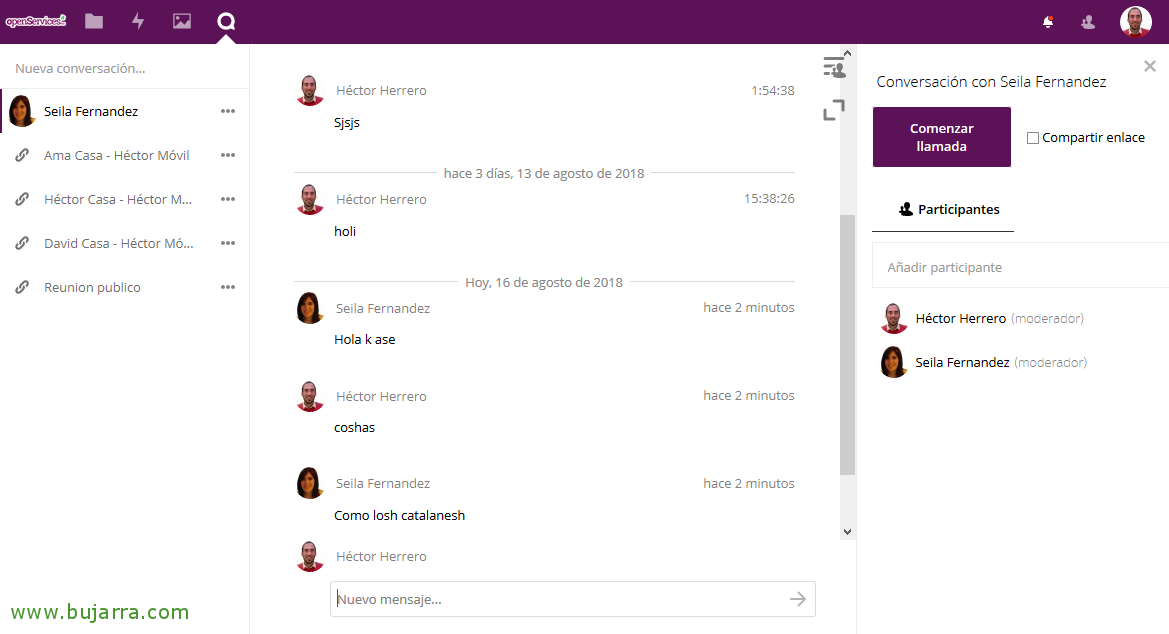
Believe it or not, There is nothing more to do! Para probarlo no queda más que entrar como un usuario cualquiera y en el menú superior, donde residen las Apps que tenemos habilitadas, veremos el icono de Talk, desde ahí será donde nos pongamos en contacto con el resto de empleados, Users, Suppliers… Un día os cuento qué son esos enlaces que tengo a distintas salas de reunión…
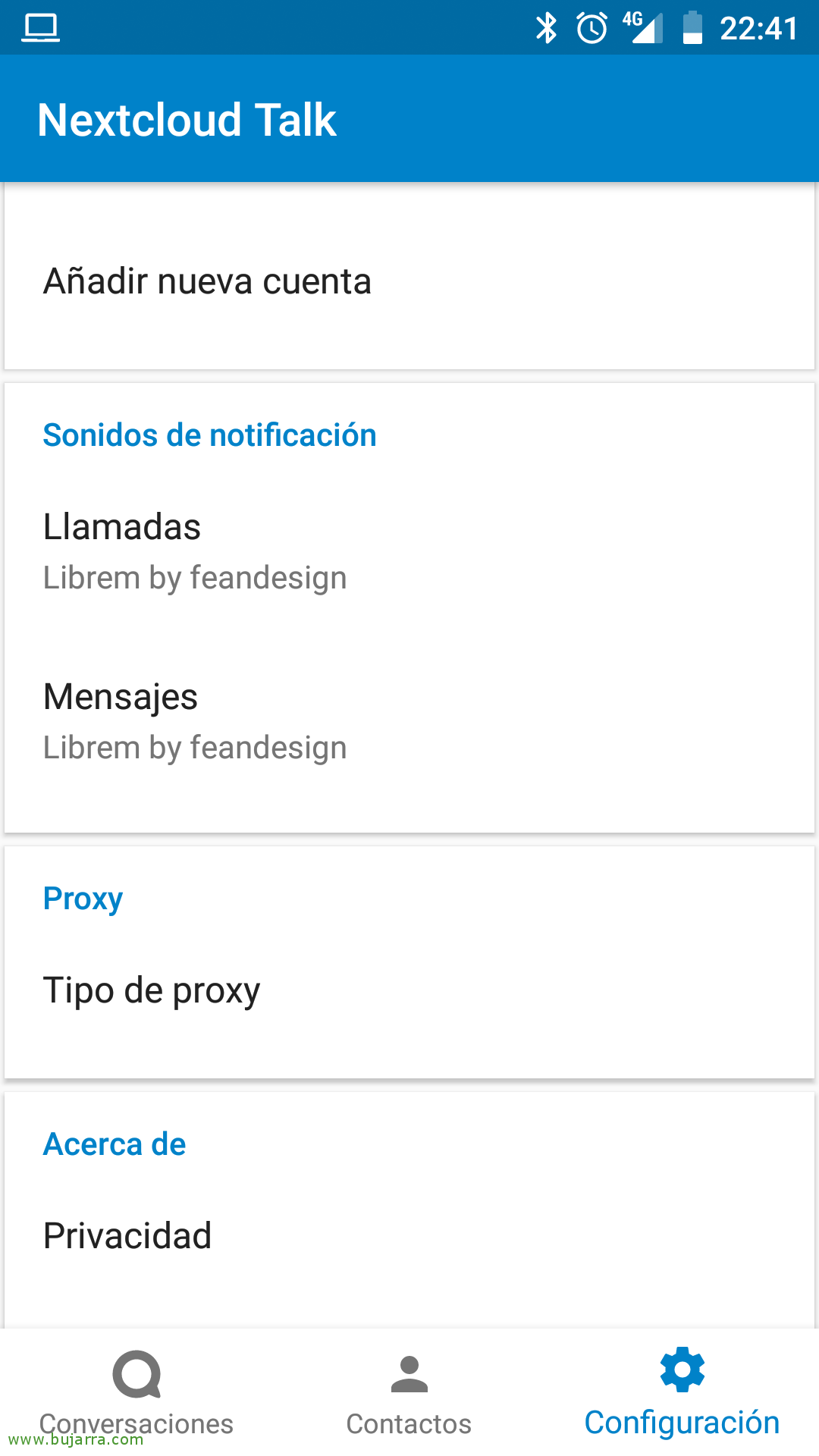
And by the way, nos podremos bajar la aplicación de Nextcloud Talk del Play Store o del App Store, con ella podremos chatear y sustituir al WhatsApp, al menos para esas conversaciones privadas de asuntos profesionales, What, quizás nadie deba enterarse 😛 Podremos ver las Conversaciones que tenemos activas, los Contactos y un menú de Configuración para las notificaciones, etc…