Citrix VDI in a Box

Last summer Citrix acquired the company Kaviza, which offers a quick and easy solution to provide a VDI environment in an SME. It provides us, through a single broker, the ability to have virtual desktops on demand (with Citrix HDX) to our users from a single image. In this document we will see the necessary steps to achieve this,
The first thing, as always, is to obtain the image of VDI Manager from the Citrix VDI in a Box website, It will be available in a virtual appliance format compatible with Citrix XenServer (5.6 and 6.0), VMware vSphere (ESXi 4.1 and 5.0) and Microsoft Hyper-V (2008 R2 SP1), We will download the image that integrates with our virtual infrastructure.

In the case of this document, we will implement it on a VMware vSphere infrastructure, So from the VMware client we deploy the virtual appliance “File” > “Deploy Template…”. We continue through the wizard as usual until the appliance is deployed (We will take into account that it will occupy 2.1GB in thin or 75GB if we select thick disks).

…
List, Once the appliance has started, It will obtain its IP address from a DHCP server or we will configure it manually from the console. We access https with a browser://IP_MANAGER/admin/, We log in as 'vdiadmin'’ and the default password 'kaviza'.
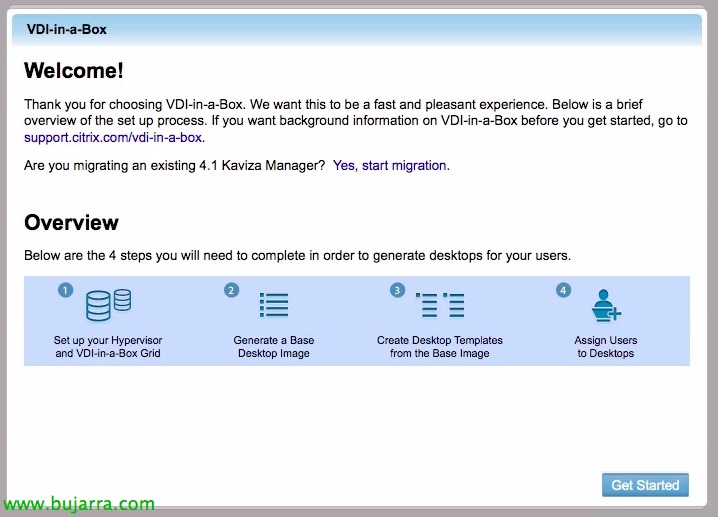
Since this is the first time we enter, We will need to configure 4 Steps to complete our deployment; In the first step we will indicate who our hypervisor is, The datastore to use as well as the network to which we will connect the VMs; en el segundo paso indicaremos cuál es la MV que tengamos ya preparada (Con Windows XP SP3 o Windows 7) para generar una imagen base de ella; una vez generada dicha imagen generaremos tantas plantillas como necesitemos de esta imagen para distribuir; en el último paso asociaremos los usuarios a las plantillas que les correspondan para que estos puedan usarlas. Así que comenzamos desde “Get Started”.

Step 1, “Continue,

Indicamos la dirección IP de nuestro primer hipervisor, así como sus credenciales administrativos, “Next”,

Selecconamos el datastore donde residen nuestras imágenes y la red a las que querremos conectarlas, “Next”,

Since this is the first vdiManager we are deploying, we will generate a new grid that will allow us to apply the same configurations to the Managers, Select “Create a new VDI-in-a-Box grid” & “Next”,

We will need to indicate from which database we will obtain the information of the users who will connect to the virtual desktops, whether from a local workgroup database (VDI-in-a-Box workgroup) or from our Active Directory (Microsoft Active Directory), in our case. We will indicate the IP address of one of the domain controllers, as well as the domain name and administrative credentials. If our vdiManager is being managed by a vCenter server, we mark “vCenter manages servers in this grid”, indicamos la dirección IP del vCenter así como un usuario y contraseña también con credenciales de administrador. “Next”,

What has been said above, necesitamos que cada vdiManager disponga de una dirección IP estática, bien por configuración o bien realizando una reserva por su dirección MAC en nuestro servidor DHCP de la red.

Step 2, “Continue”,

En este paso deberemos seleccionar la máquina virtual que tengamos preparada con Windows XP SP3 Pro (x86) o Windows 7 Pro o Ent (x86 o x64) con .NET Framework 3.5 installed, con un sólo disco, RDP habilitado y encendida. Cumplidos dichos requisitos nos saldrán las máquinas que podremos usar para generar una imagen base. Le indicamos el nombre de imagen y una descripción & “Import”,

Este proceso tardará dependiendo del tamaño del escritorio inicial ya que nos lo duplicará…

GOOD, una vez lo tenemos importado, nos conectaremos mediante Escritorio Remoto (RDP) a dicha imagen para instalarle los agentes necesarios para utilizar Kaviza VDI in a Box, Click on “Connect” pero antes nos copiaremos la URL destino a la que iremos.

Bien abrimos un navegador en el Escritorio Virtual al que nos hemos conectado y vamos a: “https://IP_MANAGER/dt/dtagent” para instalarnos el agente de VDI. Confirmamos que somos miembros de un dominio, permitimos la entrada de los puertos: 1494 para ICA, 2598 para ICA con fiabilidad de sesión, 3389 para RDP y 8080 para XML. “Install”,

Este asistente comprobará que tenemos los requisitos instalados para los agentes VDI…

Nos instalará tanto el agente de Citrix para Escritorios virtuales junto al conectorio para VDI in a Box y HDX (Citrix VDI in a Box Desktop Agent y Citrix Virtual Desktop Agent), “Following”,

Instalamos Citrix Virtual Desktop Agent & “Install”

…

“Finish”,

Ahora a por el otro requisito…

Instalamos desde el asistente: Citrix VDI in a Box Desktop Agent, “Next”,

“Install”,

…

Accept, deberemos reiniciar el escritorio virtual para confirmar que los agentes están instalados correctamente.

“Finish”, reiniciamos el escritorio virtual y volvemos al asistente de configuración.

Ok, una vez reiniciado y ya en el asistente de despliegue de imagen, confirmamos que el puerto 1494 is listening on the virtual desktop, giving to “Test port”, & “Next”,

Once the port is listening, we will try to connect to confirm that everything is OK, Click on “Connect”,
Once we have successfully connected, we should confirm 8 items.

We enter a user with which we want to test the logon…

This will be a good time to check that everything is OK and if any application is missing, we will install or configure whatever is necessary, once everything is ready we will log out of the system.

What I said, once we have finished the tests on the virtual desktop, Confirm 8 items indicating that we have met these requirements: Such as having a valid Windows license; Remote connections enabled for users in the 'Remote Desktop' group; RDP ports opened (3389TCP), HDX (1494TCP, 2598tcp and 8080tcp); Unnecessary services removed on the virtual desktop (Recommended to perform tuning/optimization on the image: Windows XP or Windows 7); Installed the file and printer sharing service for Microsoft networks; Uninstalled the VMware SVGA 3D driver; Added a USB controller from the VMware client and ensured the system is fully updated via Microsoft Update. “Donate”,

List! Continue, “Next”,

Now we will enter the data to prepare the image, Required data for when creating on-demand desktops with Sysprep. We indicate the domain that we will join, As well as an account with the necessary privileges, We will indicate the organizational unit where we will create the new team accounts, as well as the product key, time zone configuration, the prefix for the hostname, whether we want the local administrator profile to be the default profile and if we want it to perform the 'fast refresh'’ when users log out. “Prepare” to start generating that image,

Confirm,

…

… we wait while it generates the image with the parameters indicated above…

…

And that's it! we have the image generated, all that remains is to connect to test it and give the OK, So “Connect”,

We will connect one last time to the image, indicating to use the Citrix HDX protocol and whether we want it to access local drives/printers/serial ports/smart card/USB… as well as specifying the color depth. “Connect”,

We specify a user again to test the image…

Ok, everything is ready, we exit to continue with the web wizard.

If everything has been satisfactory we will confirm it, otherwise, we can cancel to reconfigure the image.

… we wait while it saves the image…

Step 3,
List, now we need to generate the template of the image we just created. “Continue”,

We will specify a name for the template, we will select the created image and indicate a prefix for the names of the machines it will generate, as well as a description, the RAM memory we want to assign to that VM, the devices we want to connect to it and the image quality, “Next”,

We indicate the maximum number of desktops we want it to generate and those that will always be available to all users as pre-started. “Save”,

“Close” to indicate that everything was correct.

Step 4,
This last step will be used to associate the users we are interested in with their corresponding desktops, “Continue”,

First of all, on the “Users” we will add the users or user groups we are interested in and save with “Save”,

Now we edit the user group to assign them a template, “Edit”,

We assign all the desktop templates we want to assign to that group,

& We save again,

We try to log in to the Web Interface included in vdiManager with a user from that group…

And if we don’t have any problems, it will load the Virtual Desktop assigned perfectly.

We take a quick look at the tabs offered by the administration web, on the “Desktops” We will see the availability of desktops we currently have, The ones that are deployed, Being used…

On the “Images” We will have our image repository where we can edit them.

On the “Templates” The templates we have created, We can create more from the previous images,

On the “Servers” We will have all our hypervisors, Where we will deploy the Virtual Desktops,

And finally in “Admin” tendremos la posibilidad de realizar ciertas configuraciones en nuestra grid, así cómo visores de logs, cambio de password o reiniciar el appliance. Hemos podido observar cómo con Citrix VDI in a Box podemos disponer rápidamente de una infraestructura de escritorios virtuales con tódas las ventajas de HDX a demanda, por supuesto que podremos dotar a nuestro entorno VDI con un acceso seguro remoto mediante productos como NetScaler o Access Gateway. Así como integrar nuestras granjas XenApp para desplegar las aplicaciones de forma centralizada.