Making a Linux a Terminal Server with NXSERVER

I have named this procedure this way because with this we will get our Linux server to become a Terminals server, sharing remote desktops or applications only. We can connect from any operating system to these terminals.
The first thing is to download the package for the server and install it (In our case, NX Server Personal Edition). From AKI.
[root@bujarra01]# rpm -iv nxserver-1.3.2-25.i386.rpm
Then install the client on the linux to test (optional), or directly the client on Windows. If it's for Linux AKI, if it's for Windows AKI:
[root@bujarra01]# RPM -IV NXCLIENT-1.3.2-7.i386.rpm
Put the temporary license that we download from your website in /usr/NX/etc/key.txt, or directly take the one I have AKI 😉 and what I said, rename it and save it as /usr/NX/etc/key.txt.
Crear un usuario de sistema, For example “nxusuario”
[root@bujarra01]# addusr nxusuario
[root@bujarra01]# password nxusuario
Changing password for user nxnheobug.
New UNIX password: XXXXXXXXXXXX
Retype new UNIX password: XXXXXXXXXXXX
passwd: all authentication tokens updated successfully.
Crear el usuario para el servidor NX.
[root@bujarra01]# /usr/NX/bin/nxserver –useradd nxusuario
NX> 100 NXSERVER – Version 1.3.2-25 PE (Unlicensed)
NX> 900 Setting password for user: nxnheobug
NX> 102 Password:
NX> 102 Confirm password:
NX> 110 Password for user: nxusuario added to NX password DB
NX> 802 NX user DB is disabled. Any authenticated user is enabled to login
NX> 716 Created directory: /home/nxusuario/.ssh.
NX> 716 Public key added to: /home/nxusuariossh/authorized_keys2
NX> 900 Verifying public key authentication for user: nxusuario
NX> 900 Public key authentication succeeded
NX> 999 Bye
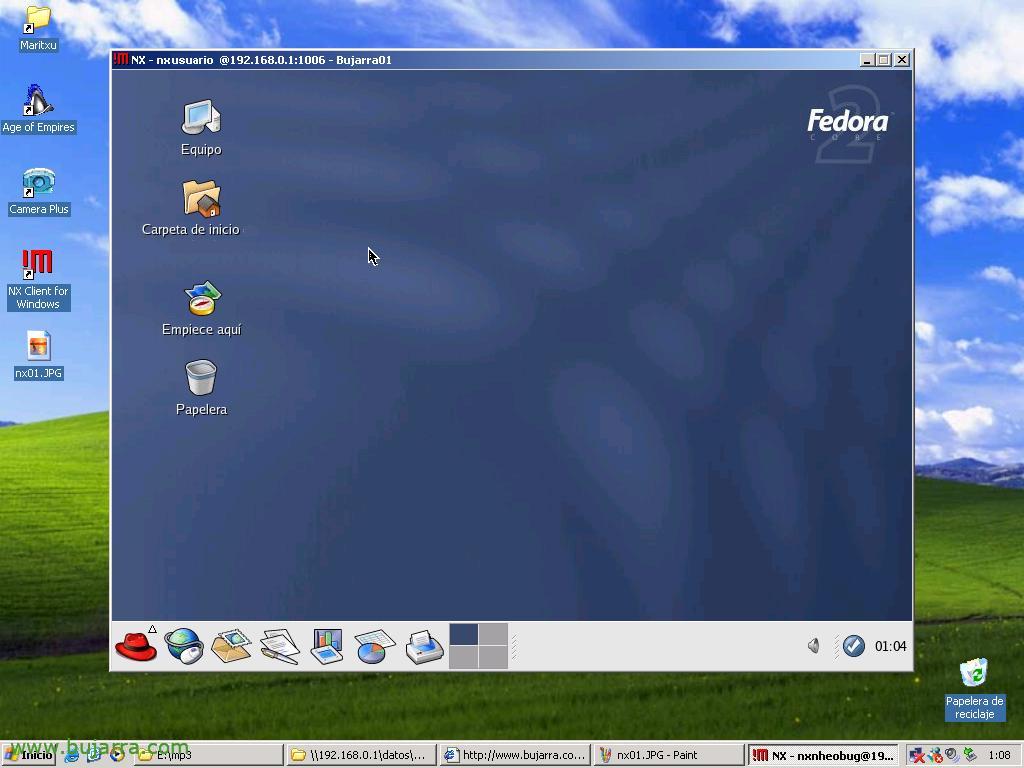
Ejecutamos el cliente en el Linux o en el Windows y modificamos los parametros necesarios para la ejecucción, pantallazos:


For more info, its official website: HTTP://www.nomachine.com