Setting up Microsoft Exchange 2007 with SCC (Single Copy Cluster) on Windows Server 2008

In this document, we will see how to set up a high availability cluster for our Microsoft Exchange mail server 2007 Server with the Microsoft Windows Server operating system 2008, in this case we will set up a cluster system called SCC (Single Copy Cluster o Clúster de Copia Única). In this previous document the rest of the possibilities that we would have are described, we may be more interested in one system than another (HTTP://www.bujarra.com/?p=2362). As discussed above, SCC is the cluster that we can know from previous editions of Microsoft Exchange, is a shared storage failover cluster system, This is, we will have several nodes with the 'Mailbox function' one of them being active and the rest passive. Storage must be shared, Databases must be in an array or remote storage system, iSCSI, fibre... When the active node fails, One of the nodes in a passive state will become active by connecting the shared storage to it and starting all its services in it.
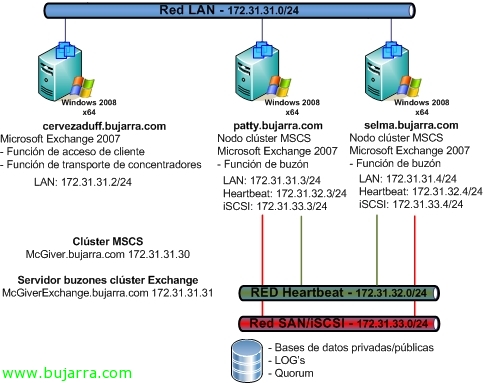
This drawing shows what is intended to be set up:
– A server named cervezaduff.bujarra.com that will be the server users connect to when they want to access their email (client access function) and it will be the one routing the organization's email traffic (hub transport function), it only has one ethernet leg which will be the normal network connection (172.31.31.2/24).
– Two servers that will be the nodes of a Windows cluster (MSCS) called McGiver. These nodes named Patty and Selma will also have the function of Microsoft Exchange mailbox 2007, but only one of them will be active at a time, it will be an active/passive configuration. The Exchange databases, public and private databases will not be stored on the servers, but in a storage shared by some NAS/iSCSI or SAN, as well as the LOGs or the cluster Quorum.
It is assumed that the network shared storage is already configured, the LUNs configured and the Microsoft MSCS cluster created (http://www.bujarra.com/?p=2290). So we will continue from this.
If it is the first installation of an Exchange 2007 in our organization, let's say in our Active Directory, we must prepare the schema to host Exchange 2007, for this, we will have to run certain commands on a domain controller that has the schema master role: http://www.bujarra.com/?p=986
We follow,

Since our servers are Windows Server 2008, we will be able to install the Exchange requirements 2007 as shown in this previous document (HTTP://www.bujarra.com/?p=2360) o mediante línea de comandos ejecutando lo siguiente en cada tipo de servidor. En el servidor con las funciones de acceso cliente y transporte de concentradores deberemos instalar los siguientes requisitos:
ServerManagerCmd -i Web-Server
ServerManagerCmd -i Web-Metabase
ServerManagerCmd -i Web-Lgcy-Mgmt-Console
ServerManagerCmd -i Web-ISAPI-Ext
ServerManagerCmd -i Web-Basic-Auth
ServerManagerCmd -i Web-Digest-Auth
ServerManagerCmd -i Web-Windows-Auth
ServerManagerCmd -i Web-Dyn-Compression
ServerManagerCmd -i RPC-over-HTTP-proxy
ServerManagerCmd -i ADLDS
En los nodos del clúster, en ambos, deberemos instalar los requisitos de la función de buzón de Exchange 2007:
ServerManagerCmd -i PowerShell
ServerManagerCmd -i Failover-Clustering
ServerManagerCmd -i Web-Server
ServerManagerCmd -i Web-ISAPI-Ext
ServerManagerCmd -i Web-Metabase
ServerManagerCmd -i Web-Lgcy-Mgmt-Console
ServerManagerCmd -i Web-Basic-Auth
ServerManagerCmd -i Web-Windows-Auth

Well, una vez que tenemos los requisitos instalados, el clúster validado y funcionando correctamente los nodos, we must indicate to our cluster the number of unanswered heartbeats we will allow before it balances to the other node. To do this we must execute on the active node of the cluster:
“cluster CLUSTER_NAME /prop SameSubnetThreshold=10”
“cluster CLUSTER_NAME /prop CrossSubnetThreshold=10”

We must begin with the installation of the first Exchange server, it will be the server with client access functions and hub transport function, it will be on my Cervezaduff server. We insert the Microsoft Exchange Server CD 2007 (x64) and click on 'Step 4: Install Microsoft Exchange Server 2007 SP1″

“Following”,

We accept the license agreement “I agree to the terms of the license agreement” & “Following”,

“No” & “Following”,

We select the option “Custom Exchange Server installation”, we select the installation path, Default: “C:Program FilesMicrosoftExchange Server” & “Following”,

We check the options “Client access role” and “Hub transport role” & “Following”,

… We wait while everything is checked for correctness…

Well, All of this is because I am in a test lab and I'm doing it quickly and of course non-production, the issue of the 32 Bit. The other warning may simply require the creation of a connector on this server for SMTP traffic. Pressed “Install” to start this installation,

… We wait a few minutes while it installs…

Ok, Everything is correct, We now have the first server set up, We uncheck the check of “Finish the installation using the Exchange Management Console” and click on “End”,

Click on “Accept”, We need to restart this server before continuing with the rest, So, let's go!

Once the server is restarted with the client access functions and hub transport, we will be able to continue. From this moment on, we can install our first Exchange on one of the nodes, We must start with the active node of the cluster, So before installing, we will check which is the active node of our cluster and has the assigned disks, All of this will be done via command line or from the cluster's admin console. We check that my active node is Patty, and I will perform the first installation on it.

So we begin the installation on that node, As I said, on Patty, we insert the Microsoft Exchange Server CD 2007 (x64) and click on 'Step 4: Install Microsoft Exchange Server 2007 SP1

“Following”,

We accept the license agreement “I agree to the terms of the license agreement” & “Following”,

“No” & “Following”,

We select the option “Custom Exchange Server installation”, we select the installation path, Default: “C:Program FilesMicrosoftExchange Server” & “Following”,

We check the option “Mailbox function in active clusters” to install this function on our active node,

As this is the first node with the mailbox function, we must specify the mailbox server name in clusters, it will be the 'logical' name’ of the Exchange cluster. As well as indicate where the database files of the mailbox server will be located, This is, where the private database and the public database will be stored, it must be a cluster resource, this is one of the disk units of the cluster, that we will have previously formatted and configured in the cluster. “Following”,

In addition to specifying what the cluster name is, an IP address must also be configured for the cluster., In my case, I will use a classic IPv4 address, So we dial “IPv4 Network” > “Use the static IPv4 address” and specify the IP we want the Exchange cluster to have, “Following”,

This depends on our organization, if we have Outlook clients 2003 and earlier versions or we will choose to have Outlook 2007 going forward, for the matter of public folders, “Following”,

… we wait while the function checks are being performed…

Ok, ready, Click on “Install” to start the installation immediately!

… we wait a few minutes while the first node installs…

Correct, We uncheck “Finish the installation using the Exchange Management Console” & “End”.

In principle, we must keep in mind not to restart the server yet, before restarting we should move the cluster resources from the active node to the other node, to the passive, sea mediante comandos o la consola de administración del clúster. Así que primero detendremos el clúster de Exchange y posteriormente moveremos todos los recursos del nodo activo a reiniciar al nodo pasivo.
Después habrá que configurar las dependencias del disco físico de la base de datos de Exchange para el clúster de Exchange, lo podemos hacer también mediante la consola de administración del clúster o con este comando:
Cluster CLUSTER_EXCHANGE res “Primer grupo de almacenamiento/Almacén de buzón (CLUSTER_EXCHANGE)” /AddDep:”DISCO_DATOS_BD_EXCHANGE“
Now, para que un error en el recurso del disco no haga que el clúster cambie por error a otro nodo, configuramos la directiva de recursos de discos físicos con el siguiente comando:
Cluster CLUSTER_EXCHANGE res “DISCO_DATOS_BD_EXCHANGE” /prop RestartAction=1
Ok,

Now, We can now restart this server immediately before proceeding with the installation of the other node, “Accept”,

Eye, before installing this second server as a passive server, it will have to be, This is, if we have restarted Patty, which was the active node, resources will have been moved to this server (Selma), so before continuing and starting the installation, we will move all resources to Patty from the console or command line:
Cluster group STORAGE /move:PATTY
Cluster group CLUSTER_EXCHANGE /move:PATTY
Cluster group CLUSTER /move:PATTY
And we continue with the installation, making this node the passive node of the cluster, So “Step 4: Install Microsoft Exchange Server 2007 SP1”,

“Following”,

“I agree to the terms of the license agreement” & “Following”,

“No” & “Following”,

We check the option “Custom Exchange Server installation”, we select the installation path, Default: “C:Program FilesMicrosoftExchange Server” & “Following”,

And here we will indicate that it is the “Función de buzón en clústeres pasivo” & “Following”,

Same as before, dependerá de los Outlook que tengamos en nuestra Organización, “Following”,

… esperamos mientras se comprueba que el entorno es correcto…

List, Pressed “Install” para comenzar la instalación de este segundo nodo del clúster!

… esperamos otros cuantos minutos mientras se instalan los componentes…

List! desmarcamos la opción de “Finish the installation using the Exchange Management Console” & “End”,

Aceptamos y reiniciamos el servidor de forma inmediata.

Tras el reinicio de nuestro servidor pasivo (Selma) ya podremos comprobar el estado de nuestro clúster de Exchange, en qué nodo se encuentra en ejecución y si todos los recursos se encuentran en línea o no.

Podemos mover el clúster de un nodo a otro desde está consola, But it is recommended to use the Exchange console for this, Yes, that's it, from the Exchange cluster, Right-click > “Move this service or application to another node” > “Move to the node SELMA”,

… we wait a few seconds while it takes the resources offline, queues them (pending connection) and comes online on the other node…

And we will be able to check which server will be the current owner, now it is SELMA.

If we ping, we should check that we will only lose one during the failover, practically undetectable to users, so everything is fine.

If we open the Exchange management console, we will see the server with the mailbox role with the logical name,

The correct action would be to move the Exchange cluster service from the console, for this, since “Server Configuration” > “Mailbox”, Right-click on our server “Manage the mailbox server in clusters…”

The wizard will open for us, From this we can move the cluster as well as stop or start it, In this case, to demonstrate and move it to another node, Mark “Move the mailbox server in clusters to another node” & “Following”,

Select the passive node to which we want to move the cluster & “Following”,

List, Confirm & “Move”,

… We wait a few seconds while the cluster moves between the nodes…

Correct! We have also tested from the Exchange console, That is ideal, Test the migration in both directions or at least test all the nodes in the cluster and ensure that users do not notice the movement of the mailbox function.. Como vemos también podremos realizar dichos movimientos desde el PowerShell de Exchange con el comando:
move-ClusteredMailboxServer -Identity ‘CLUSTER_EXCHANGE’ -MoveComment ‘Comentario’ – TargetMachine ‘NODO_PASIVO_DESTINO’