Installation, Configuring and Using Citrix SmartAuditor

In this document we see one of the utilities that can help us obtain more information about incidents we have with our Citrix XenApp environment. We will see the installation, Citrix SmartAuditor Setup and Operation, which is a utility that will allow us to record the users' sessions on video, being able to notify them or not that they are being recorded, With this we can see how users work and we could detect errors (It can even serve other types of purposes such as demonstrating the correct work of an employee…) is yet another help provided by Citrix for XenApp monitoring.

This would be the SmartAuditor scheme consisting of the following functions:
– Management of SmartAuditor: It will be the team responsible for managing the recordings (Citrix SmartAuditor Server), will have a console where the recording settings are configured (SmartAuditor Policy Console) and will store the configuration in a SQL database (Citrix SmartAuditor Database). All of this can be installed on the same machine or separated into different machines.
– SmartAuditor Agent: Must be installed on Citrix Presentation Server or Citrix XenApp servers to allow recordings.
– SmartAuditor Player: Will be installed on the machine we want to use to view the recordings.
It is worth mentioning that SmartAuditor will only be available with a Platinum license. The software prerequisites are as follows:
On the SmartAuditor Server we will install IIS + Message Queuing (MSMQ Server) + ..NET Framework Version 2.0 + SQL Server or SQL Express 2005 or higher (if it's a remote server, TCP/IP connections will need to be enabled).
On the SmartAuditor Message Queue Server Agent (MSMQ Server).
Installation and configuration of SmartAuditor Management,

First of all, we install the SmartAuditor Management server from the Citrix XenApp DVD 6, “Manually install components” > “Server components” > “Other components” > “SmartAuditor”.

Installation via wizard, “Following”,

“I accept the license agreement” & “Following”,

We will install all three components, the SmartAuditor policy console, the Citrix SmartAuditor server, and the Citrix SmartAuditor database, all of this by default in “%%ProgramFiles%CitrixSmartAuditor”, “Following”,
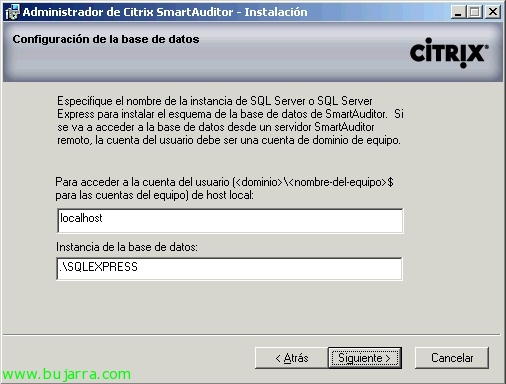
We must indicate who the database server is and the instance where we will create the database named CitrixSmartAuditor. “Following”,

“Following” to begin installation,

…

Ok, we have it installed, now we need to open the management consoles to make the configurations we need. “End”,

We open the “SmartAuditor Policy Console”,

We connect to the host where we have installed the Citrix SmartAuditor server function, via HTTPS or HTTP.
If we want to connect using HTTP, we must open the IIS management console, we go to the default site, we enter the properties of the application “SmartAuditorBroker”, on the “Directory Security” > In 'Secure Communications',’ Pressed “Modify” and uncheck “Require secure channel (SSL)”.
If we want to connect using HTTPS, necesitaremos generar e instalar un certificado para nuestro sitio predeterminado en IIS y configurar lógicamente que IIS esté en el puerto 443.

Esta es la consola de directivas de Citrix SmartAuditor que nos permitirá gestionar las grabaciones, a quién grabaremos, qué aplicaciones, si avisaremos de que se está grabando o no; y en qué servidores. Por defecto vienen tres directivas de grabación:
– Grabar cada persona que se notifica.
– Grabar cada persona sin notificación.
– No grabar.

Podremos crearnos una tan sencillo, cómo botón derecho > “Agregar nueva directiva”,

En el ‘Paso 1’ se configura si queremos o no notificar a los usuarios que usen Citrix que se les está grabando (o deshabilitar la grabación). “Following”,

In 'Step 2',’ we configure who (Users or groups), which applications or which servers the action from 'Step 1' will be executed on.. In this case, I will select my group of Citrix users., I will record all of them., I click on 'Select users and groups'.…’

“Add” > We select the users/groups..

And finally, in the last step,, we assign a name to the rule,, a description, and enable it. (Or not). “End”,

If we want this policy to be executed,, we must activate it. (Right Button > “Activate policy.”).
List.

If we open the console of “SmartAuditor server properties,” we can configure certain parameters.,

On the “Storage” We will indicate the directories to save the recordings.,

On the “Signature”, We will be able to digitally sign the recordings with a certificate..

On the “Renewal” we will specify the maximum size of each recording file (when it reaches that limit it would create another file, I don’t know about the recording) and the maximum recording time.

On the “Playback” whether we will allow videos to be played while still recording, or secure the videos by encrypting them.

On the “Notifications” we will be able to edit the messages that users will read if they receive notifications, we will be able to add different messages depending on the language.

And in the “SmartAuditor Authorization Console” we will configure permissions, we will have different roles to which we must give access to the users we are interested in. E

In “Player” we will give permissions to be able to view the recordings, by default no one has permissions.

In “PolicyQuery” the users who will have permission to read the policies of the SmartAuditor server, by default 'Authenticated Users'.

In “PolicyAdministrator” the users who will have permission to access the SmartAuditor policy console to create/edit/delete policies, by default 'Administrators'’ of the domain.
Installation and configuration of the SmartAuditor Agent,
We need to install a small software on the Citrix XenApp servers where we want to perform recordings called 'SmartAuditor Agent', we can perform this installation manually using a wizard or with command line (being able to include it in a GPO and automate the installation on all our XenApp servers).

On the XenApp DVD, Run “SmartAuditor Agent”,

“Following”,

We accept the agreement, “Following”,

We indicate who the SmartAuditor server is, “Following”,

We select the directory for the installation, by default it will be ‘%ProgramFiles%CitrixSmartAuditorAgent’, “Following”,

…

“End”, we should not have to make any additional configuration.

The other way, is to install it via command line with: ‘msiexec /i PATHSmartAuditorAgentx64.msi smartauditorservername=SMARTAUDITOR_SERVER_NAME smartauditorbrokerprotocol=HTTPorHTTPS smartauditorbrokerport=PORT /l*v PATH_LOG_FILE /q'’

If we open the ‘SmartAuditor Agent Properties’ on the “Recording” we will be able to enable/disable recordings on this specific server, Or if we want to allow third-party applications to create notes or events that can be viewed during video playback.

On the “Connections” we will be able to indicate if the SmartAuditor server has changed, or the ports, connection protocols.
Installation and use of the SmartAuditor Player,

In order to view the recordings from SmartAuditor, we will need to install the SmartAuditor Player on the machine that needs it.
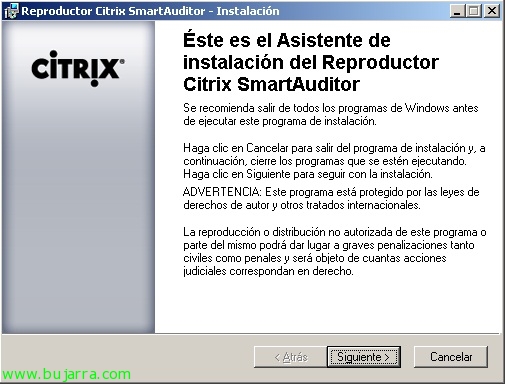
Just like all SmartAuditor installations, it will be a very straightforward installation, “Following”,

“I accept the license agreement” & “Following”,

“Following” to begin the installation of the Citrix SmartAuditor Player,

…

“End”,

We open the Smart Auditor Player,

Esta sería la consola de visualización, muy sencilla de usar, nos permitirá ver vídeos, buscar videos, anotar indicaciones, cortarlos/modificarlos…

Podemos abrir un fichero de grabación desde “File” > “Open” y buscamos en la carpeta donde tengamos las grabaciones.

Estaría reproduciendo la grabación del usuario… (por si no se aprecia es un usuario llamado jorge.arbusto escribiendo en un bloc de notas),

Si queremos conectarnos directamente contra nuestro servidor SmartAuditor, We're going to “Tools” > “Options…”

Eyelash “Connections” > “Add” e introducimos los datos.

Así por ejemplo ya podremos hacer búsquedas de videos!

Y este sería el mensaje (Default) que les saldría a los usuarios que abran una aplicación de Citrix y se les vaya a grabar la sesión.