What's New in VMware View 4.6

The past 24 de febrero VMware lanzó la esperada versión 4.6 de VMware View que trae una serie de mejoras, problemas arreglados (relacionados con el teclado, corregidos más de 160 bugs…), soporte para el SP1 de Windows 7/2008 R2. VMware View 4.6 se puede montar a partir de VMware Infrastructure 3 version 3.5 Update 5 (or higher) y VirtualCenter Server 2.5 Update 6 o en vSphere 4.0 Update 2 o en vSphere 4.1. Estas son las principales novedades que trae VMware View 4.6:
– Soporta uso de smart cards que usen PKCS#11 o con Microsoft CryptoAPI.
– Soporte de PCoIP en los VMware View Security servers (sólo bajo Windows 2008 R2) mediante PCoIP Secure Gateway podremos conectarnos ya sin necesidad de VPN’s a nuestra infraestructura virtual desde el exterior.
– Redirección de USB’s soportada!

VMware View 4.6 es la solución de VMware para uso de escritorios virtualizados, where it integrates seamlessly with our VMware vSphere virtual environment, with our ESX hosts(i) and vCenter Server. En una serie de documentos que iremos viendo veremos cómo montar una infraestructura de VMware View 4.6 completa y podremos ver todas las novedades del producto. Montaremos lo siguiente:
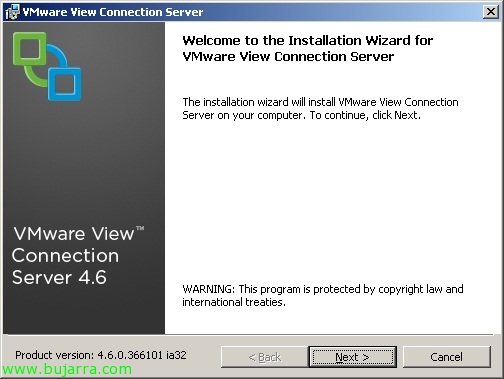
– VMware View Connection Server: It will be the server responsible for managing the virtual desktop environment, where we will provide access to the desktops, we will create them, autenticaremos a los usuarios, coordinación de SSO entre el Secure Server y el Connection Server… (Let's go, es el broker de VMware View). Este servidor podrá ser Standard (primer o unico broker), Replica (para disponer de alta disponibilidad y balanceo de la carga), Secure Server (without belonging to an Active Directory it will be completely isolated in the DMZ and will allow us connections from the Internet) and Transfer Server (which will be the server in charge of transferring desktops to make them available offline).
– VMware View Composer: It must be installed on the VMware vCenter Server(s). This is the server that will allow us to distribute desktops to users from a single image for all. Increasing the speed of desktop provisioning while also reducing storage requirements!
– VMware View Agent: It is the software that we must install on the desktop to be published.
– VMware View Client: It is the software that we will install to access our virtual desktop environment.
– VMware View Offline Client: Apart from the above, it will allow us to take the desktop with us in a portable manner to later synchronize it with the.
In the top image you can see the necessary connections to be opened between the WAN (or Internet) and the DMZ: as well as between the DMZ and the LAN.

In this image you can see the possibilities that creating a pool of virtual machines 'automatically' would give us. As well as an explanation (In English) of each feature.

In this image you can see the possibilities that creating a pool of virtual machines 'manually' would give us. As well as an explanation (In English) of each feature.

And this third option (less used) to create a pool of Microsoft Terminal Services servers (now called Remote Desktop Services or RDS).