Using VMware View Composer 4.6

Con VMware View Composer conseguiremos distribuir escritorios a los usuarios a partir de una misma imagen para todos, sin tener que andar clonando una máquina virtual origen, or have one full virtual machine per user, This is, los escritorios que generemos a partir de esto no tendrán un disco duro virtual, If not a link’ to a replica of the original virtual hard drive. With this we will achieve impressive storage savings, For example, if we design that our Desktops we want them to have 20Gb of disk, You don't need to allocate that amount to each VM, if, for example, we are going to distribute 50 Desks: 50MV x 20Gb = 1TB of space for VDI or VMware View environment only, as this does not make much sense, VMware View Composer is used to deploy Desktops from a single image, these new Desktops will occupy only their swap memory plus space (optional) que queramos dar a los usuarios para que almacenen información, What can it be 0. A greater level of detail will be given later.

This would be the graphical schematic of how the provisioning of the Desktops works. We have a source virtual machine with its operating system installed, with your common applications for our future users installed, member of a domain, Network Configuration with DHCP, with the agent installed, etc... Once it's ready to be cloned, a snapshot is taken of it while it is turned off. We can have several snapshots of this virtual machine with different configurations for different desktop deployments.
The replica is a copy of an exact version of the source VM, This is, is a complete copy of one of the chosen snapshots (In this document there will be only one snapshot, no more will be worked with).
And from this structure, We created so many clones (Also called vClon) of this replica as we need, in the image you can see a couple of VMs generated from this version of the source VM, They are snaphost instants. Clones don't write anything to disks, if they are not isolated in their own snapshots, So the data on the 'replica' disk is untouchable and therefore all clones continue to access this disk. Apart from this, We have the possibility to create a data disk for users to store information, during the wizard it will ask us and if so,, it will map them to us with a letter on each of the Desktops.
Installing VMware View Composer,
This is the software that will allow this to be fulfilled, para ello deberemos instalar VMware View Composer en cada uno de los servidores VMware vCenter de nuestra organización que querramos que pueda proveer Escritorios de forma automatizada.

We begin the installation of VMware View Composer on the VMware vCenter server, The installation is not crumb at all, "Next",

We accept the patent agreement & “Next”,

I accept the terms in the license agreement & "Next",

We check that the installation path is correct (por defecto %ProgramFiles%VMwareVMware View Composer), “Next”,

To install VMware View Composer, we need a SQL database, for this, During the Wizard, we will have to create a connection to it, so we first create an empty DB on our SQL server and connect to it from "ODBC DSN Setup...". Enter the name of the DSN connectors we just created and the credentials we provided during the ODBC setup. "Next",

Select the SOAP port, which by default is 18443 and if we have an SSL certificate installed on the computer we can select it, in my case, It will generate a new one for me. "Next",

Click on “Install” to begin installation,

…

After a few minutes, We have the app installed, ready. "Finish".

Deberemos reiniciar el servidor para continuar.

Now, debemos ir a la administración de nuestro servidor VMware View, “View Configuration” > “Servers” a la parte de “vCenter Servers”, and we edit the one we have configured from 'Edit…'

Mark “Enable View Composer” we indicate the connection port, that by default we have said that it will be the 18443. We must add at least one domain administrator account, so that VMware View Composer has sufficient domain-level privileges to customize the Desktops if needed, from 'Add…',

Enter the domain name, the username with permissions to create accounts in the domain and its password & “OK”,

We check that we have the composer enabled if we see that the vCenter server icon changes.

Once we have that, before continuing we need to make a snapshot of the Source VM that we will use as an image, So first, We turn it off (IMPORTANT) and we make a snapshot from the VMware client, on the right-click VM > 'Snapshot' > 'Take Snapshot…', We indicate a name & description & “OK”.
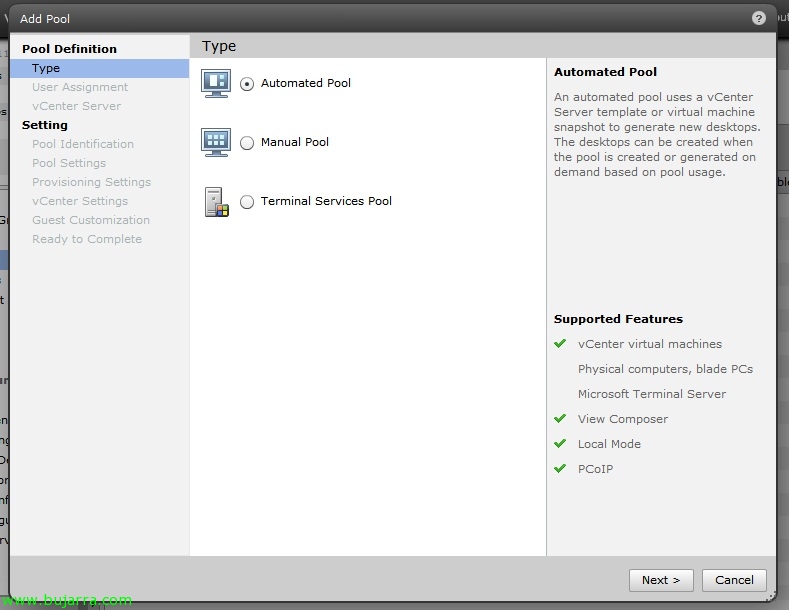
Now we can create the Desktop pool, for this, Let's go “Inventory” > “Pools” , and we click 'Add…' to create it, and we indicate an automated Desktop pool or 'Automated Pool' & "Next", to create a few Desktops for end users,

As we would like, it can be Dedicated or Floating, Dedicated indicates that when a user logs in for the first time to a Desktop, it is associated with them (we can also indicate that automatic assignments be made, so whenever that desktop is free, it will have preference over the rest), and Floating, which will make the connection random, "Next",

We mark the VMware vCenter server(s) where we have installed VMware View Composer, "Next",

And now we're going to create the Desktops pool, we must indicate the ID, and the name that users who connect will see, this name has to be something that is associated with the Desktops set, and that when they click on it, I took them to one of their Desks, "Next",

When generating this type of pool, we will indicate whether we will leave it enabled or not, we will be able to indicate which Connection Server will allow connections through tag's that we will have previously configured in its properties. If we want to indicate that the VM's are turned off after the user uses them and when requested, they can be started or directly leave them always on; as well as force a logout in the event that the user leaves by disconnecting the session (and if we are interested we can allow them to restart their machines if necessary). We will also indicate the default PCoIP protocol of use, which protocol will be used by the 4172udp, even though the first connection will be made through 4172TCP, we can indicate RDP if we need it or allow the user to control it. At the PCoIP level, we can indicate the maximum number of monitors we want as well as their maximum resolution (1920×1200 or 1920×1200 or 2560×1600). We can even check the image quality at the Flash level to use more or less bandwidth by achieving more or less image quality or controlling the ratio of the frames of a flash with Adobe Flash throttling (With the most aggressive mode we will get better bandwidth. "Next",
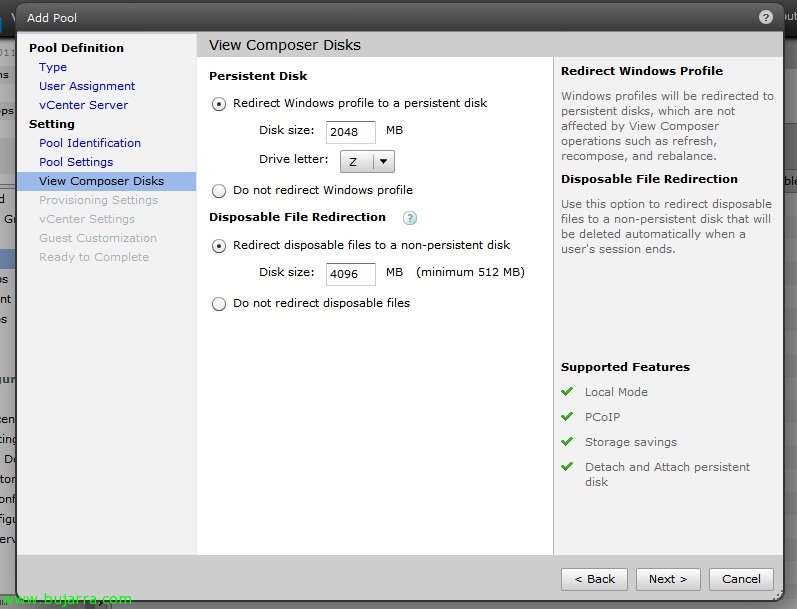
We can indicate the path where the user profile will be stored, and if we want users to be able to store information on the virtual machine, we have two options, one is to create and associate a hard drive for each Desktop, with the space we indicate and the user will have it mapped with the unit we indicate, care, pq if we indicate that we want 2Gb per virtual machine and we create 10 MV, we will already have 20Gb occupied. Or we can instruct it to be stored with the Desktop disk, limitless. "Next",

We must enable if we want to use the provisioning of the Desktops, the number of Desktops we want it to generate (in this case we will create 2 clones) as well as the number of them that we always want to keep turned on, and if we want them to be generated on demand or immediately. Finally, the format of the Desktop names using variables (in my case I will use something like XP-01, XP-02… for more information about the nomenclature, read the VMware View Administration Guide PDF), "Next"

We must indicate the VM that we will use as the initial image from “Browse…”,

We select the master VM in “Browse…”,

We mark it & “OK”,

We select the snapshot that we created previously & “OK”,

We will indicate the rest of the information: the folder, the cluster, the resource pool and the datastore(s)(s) that we will use for our new desktops & “Next”,

Additionally, we will indicate the way to generate the SID on the new machines, whether with QuickPrep or with a customization template (which we should have previously configured, More info: http://www.bujarra.com/?p=1133), “Next”,

We check the summary & “Finish”,

We can see on our VMware vCenter server, How fully automated virtual machines are generated, and they are initiated once they are created.

List, we see that the Pool of Desktops is out, now just like a regular Desktop, we must give permission to access it, for this, as always, clicking on 'Entitlements...'

“Add...” To add users/groups & we look for a group of users who can use this set of Desktops and that's it, "OK"

This would be an exploration of the virtual environment's datastore, As we can see, Each directory has the disk space we originally estimated, Desktops or clones only have one large swap file, the Z drive that we have indicated during the wizard...