Always keep Citrix customers up to date

This procedure explains how to have all our clients always updated and automatically. The fact that users are always working with up-to-date clients avoids many problems, since bugs are usually corrected, Corrects security and speed issues. Clients need to be updated in two places. The first site: we create a database with Citrix clients on the Citrix server, with those that come on the component CD; if CITRIX releases a new version from a client (every X months he always brings out something new), We just downloaded it (in .cab) and we update it in this BD, then we instruct them all to be updated automatically and transparently. And the other site where we need to update the server (is optional), if we have a server with the Web interface, and with clients copied to him, for when someone doesn't have this ActiveX they should give it to them […]

Updating a Presentation Server with Updates

Like everything, It is very important to keep a server updated with all patches, whether they are for the operating system or for its own applications or services. This document explains how to update a Citrix component (the Presentation Server). On my server I have the Presentation Server installed 4.0, but currently on the internet there is the R02 for it and some post-updates. The logical thing is to update to the latest 'service pack'’ (release), but not only for the Presentation Server, if this server has more services, they would also need to be installed, for example, the web interface, or the license server… Especially if we have the server exposed to the internet. If everything is on a LAN it would be less critical. To update a component:

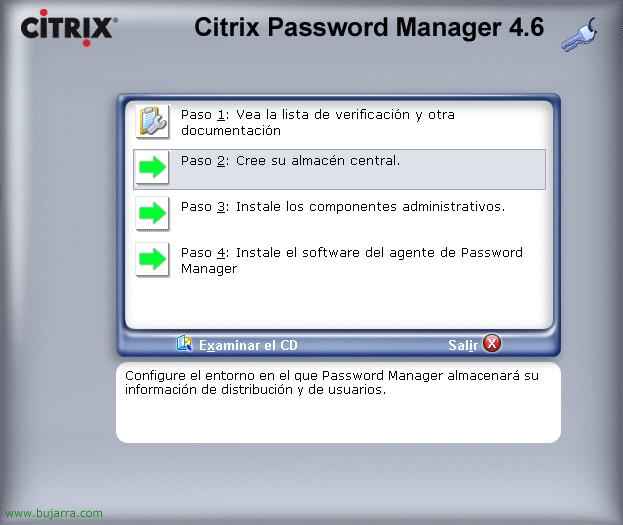
Installing and Configuring Citrix Password Manager 4.6

Password Manager is a Citrix product that allows users to have the password system fully automated, also known by the Citrix single sign-on name. We can allow: – Automatic logon: On local or remote computers, on websites or in any type of application that require credentials, whether to custom applications. Anything that requires a password, the user stores it using Citrix Password Manager and will never be asked for a password again, Credentials will be automatically entered. – Transparent password change: This is, When an app requires the user to change their password (x example why it expires) Citrix Password Manager can automatically generate a complex password that the user does not even have to know and will be automatically stored in Password Manager for later use. – Account Self-Service: Users can unblock their user accounts […]

Fix Citrix Default Printers Problem

Sometimes, Citrix modifies users' default printer, They may have a printer set as the default and certain users may change it to the default printer on the servers. Previous steps: Logically, we have had to configure the Citrix policies in which it is indicated that the default printer is the client and not the server. Have the client printer drivers installed on the Citrix server in case the drivers provided by the user are not compatible. We have to take into account that the user with the problem must be logged into a Citrix server, we will log in to that Citrix server as an Administrator and we will perform the following tasks:

Citrix GoToMeeting installation and configuration

In this document, we will look at a Citrix utility called GoToMeeting, It is a tool that will allow us to create online meetings or conferences. A simple tool that integrates with Microsoft Outlook and is fully accessible via the web. It will also allow us to share resources, or display applications online, Perfect for application demos or product presentations, All of this through the internet without the need to be in the same physical location.

Configuring Citrix Policies or Policies

This document lists all of the policies that Citrix has and can be configured. To create them we need to do it from the “Presentation Server Console” from the “Policies”, from there we will create them, We will edit your properties, we will enable or disable them, and we will give more or less priority in the case of having more directives.

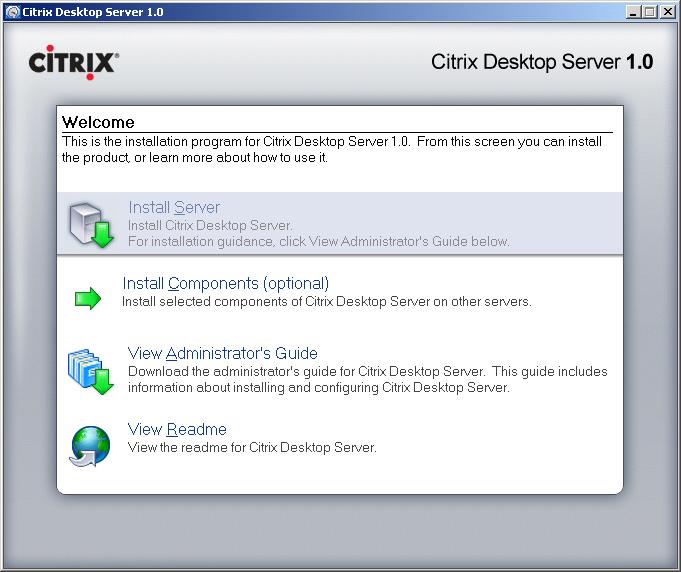
Citrix Desktop Server Installation and Configuration 1.0

This document shows how we can use this Citrix server, which unlike the Presentation Server that publishes applications, With this we publish equipment. We're supposed to have a pool of teams, Usually virtual (View VMware – HERE) and to which we will connect through the Citrix client to them. The example that we will make in this document, we have a department in our organization called Development, where we have multiple users who use ThinClients and will access these computers as if they were their own, All teams in this department have the same applications and configurations.

Installing and configuring Citrix Secure Gateway 3.0 – CSG 3.0

This procedure explains how to secure a Citrix environment over the Internet using CSG or Citrix Secure Gateway, This will also allow us not to have to open the typical ports 1494 and 2598 firewall, but simply with the 443 or the one we want will pass everything to the CSG and it will manage it. It will be a secure connection using a server certificate installed on the web server.