Uso de VMware Linked Mode

Otra de las novedades de VMware vSphere es la posibilidad de unir nuestras instalaciones que tengamos con diferentes VMware vCenter, sean del mismo dominio o de diferente (siempre que tengamos los permisos correspondientes). Con VMware Linked Mode podremos gestionar varias instalaciones simultáneamente de vCenter, estén en la misma red o no, con esto conseguimos una gestión mucho más sencilla y cómoda.

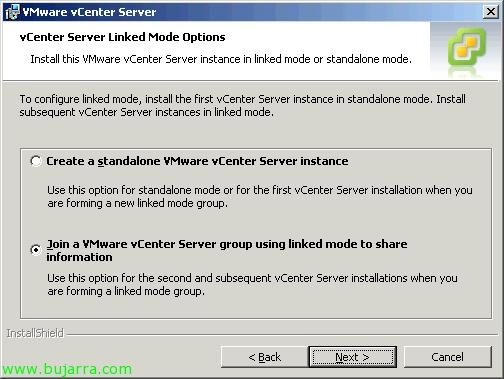
A la hora de instalar VMware vCenter 4, podemos o crear una instancia independiente de VMware vCenter (‘Create a standalone VMware vCenter Server Instance’) o unirnos a una instancia de VMware vCenter ya existente (‘Join a VMware vCenter Server group using linked mode to share information). If we select the latter and continue with the installation wizard,

It will ask us for the VMware vCenter server to connect to. If this is the first time we are connecting, we should point to the only vCenter we have, if later we want to connect to another vCenter, we will join any of the vCenters that are already in the group independently. And we select the LDAP port (by default 389tcp).

This would be what the VMware client console looks like (VMware vSphere Client) with Linked Mode configured.
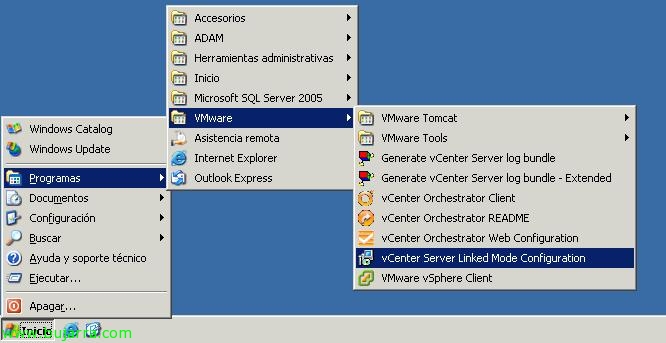
Anyway, we can perform this configuration if we already have VMware vCenter installed, we can join or separate from 'vCenter Server Linked Mode Configuration'’ within the 'Start Menu'.
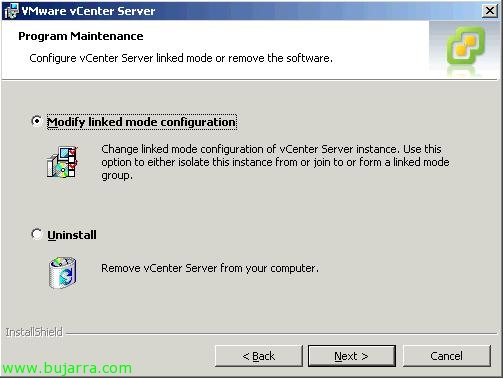
There we can modify our configuration, Marking “Modify linked mode configuration” & “Next”,
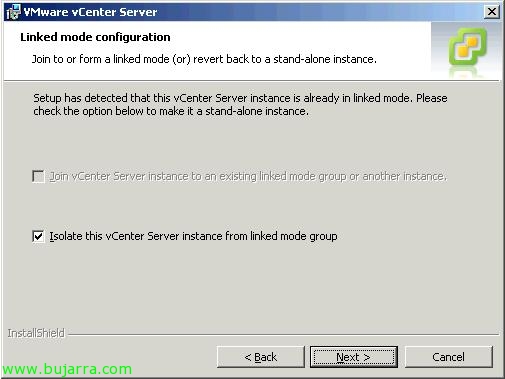
Having the ability to join a group if we are 'isolated’ Marking “Join vCenter Server instance to an existing linked mode group or another instance” Or if we already belong to a group we can leave by marking “Isolate this vCenter Server instance from linked mode group”.