VMware vCenter Server Appliance

One of the new features of vSphere 5 es la disponibilidad de un nuevo virtual appliance con VMware vCenter Server 5 in it, es una máquina linux por lo que ya quitamos la necesidad de tener un Windows consumiendo licencias para gestionar un entorno virtual de VMware de forma centralizada. Este nuevo appliance virtual llamado VMware vCenter Server Appliance (vCSA) nos ahorrará dinero en gastos de implementación, mantenimiento y sobre todo licencias Windows, en este documento veremos cómo podemos desplegarlo en apenas unos minutos (la instalación y configuración),

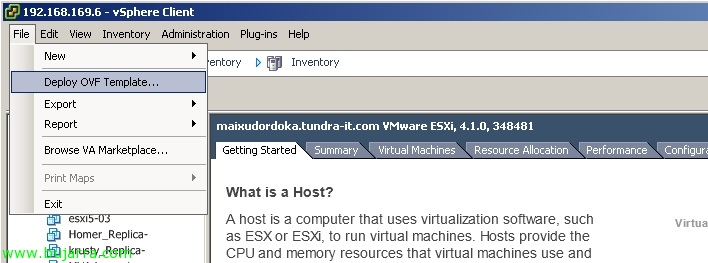
Primero nos bajamos el appliance de la web de VMware, lo importamos ya que vendrá en formato OVF, “File” > “Deploy OVF Template…”. El asistente nos creará una máquina virtual con 2 vCPU's, 8Gb of RAM, LSI Logic Parallel, VMXNET 3, dos discos que podrán ser desplegados en thin (5,7 GB) o thick (82 GB), además dispone de las VMware Tools instaladas.

Buscamos el fichero OVF y continuamos como es habitual con el asistente para importar el virtual appliance,

…

“OK”,

Once imported, arrancamos el appliance vCenter 5 que está instalada sobre una SUSE Linux Enterprise Server 11 x64,

Deberemos configurar la red y la configuración de zona horaria.

Configuraremos la red con: una dirección IP fija, mask, Gateway, servidores DNS y estableceremos además el nombre para el vCenter Server Appliance,

Abrimos el navegador contra: https://IP_vCenter_Appliance:5480 para configurar brevemente el virtual appliance y nos validamos con el usuario y contraseña predeterminados: root/vmware.

Lo primero de todo será aceptar la EULA, “Accept EULA” y veremos como ‘EULA Status’ cambia a ‘accepted’

Lo siguiente será cambiar la clave de ‘root’ since “vCenter Server” > “Administration”.

In “vCenter Server” > “Database” debemos indicar la base de datos que utilizaremos, podrá ser local basada en DB2 (equivalente a vCenter sobre Windos con BD MSSQL Express) o podremos utilizar una externa siendo una Oracle. Seleccionamos el tipo de BD que queremos & testeamos lo primero “Test Settings”,

Once we have no errors, We save the changes “Save Settings”.

In “vCenter Server” > “Settings” we will select the type of deployment we will have, as well as the ports we will use in vCenter.
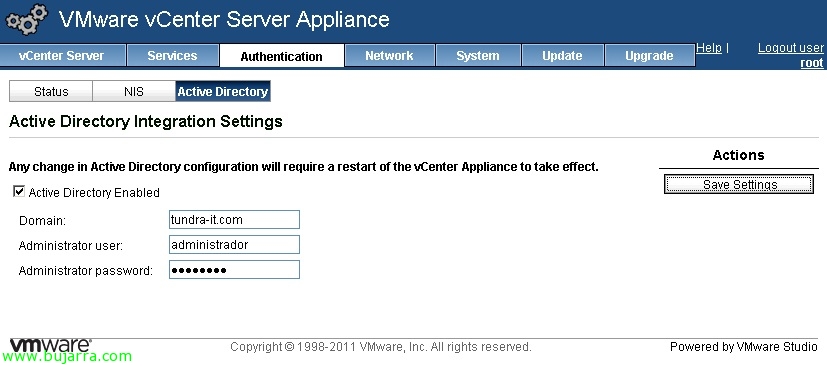
If we are interested, we will be able to integrate VMware vCenter Appliance with Active Directory, either for management authentication or later to configure logons through the vSphere client. Mark “Active Directory Enabled”, we will indicate the domain and the user with administrator privileges & “Save Settings”,

Once the vCenter virtual appliance is configured, we restart from “System” > “Information” > “Reboot”,

After booting, we can already connect as 'root'’ to the vCenter environment and add the users from our domain whom we want to have logon/administrative/read-only permissions…
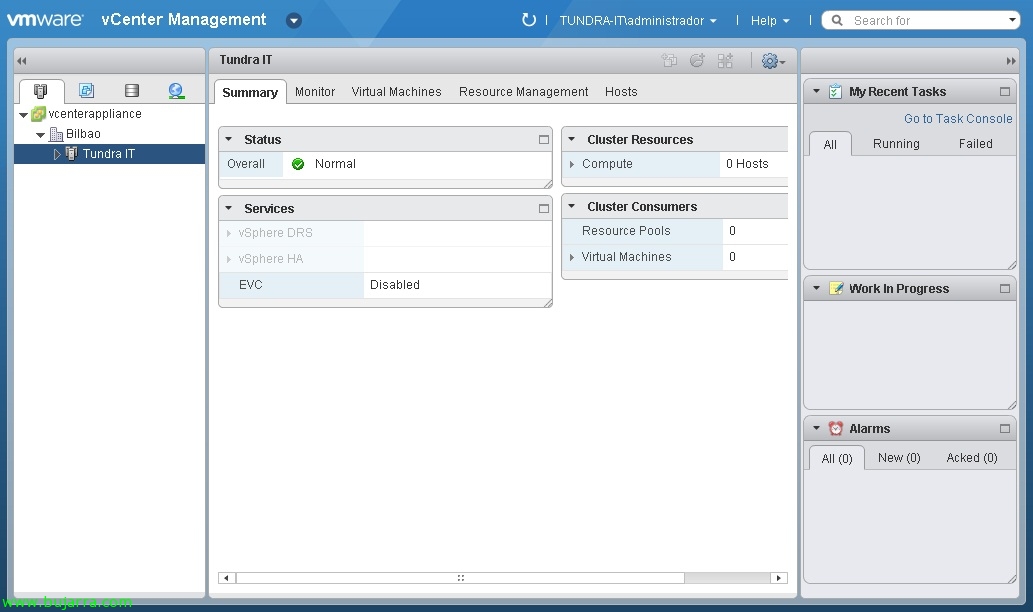
If we don't have the vSphere client, we can use the vSphere Web Client that comes installed and enabled by default in vCenter Server Appliance, so if we connect directly to https://vCenter_Appliance_IP we can access it. vCenter Server Appliance could also be configured to act as a Syslog server for the ESXi hosts.