Secure Web Interface with SSL

Part of the most important thing is to secure the web interface, since if users are going to access it from the internet, it is important to know that the HTTP protocol (80 TCP) Not at all secure for password traffic, And anyone can get our passwords, what we will do is secure the web interface using SSL, The Secure Layer, with the HTTPS protocol (443 TCP). For this we need a server certificate, We can achieve this with some Internet certificate authority (for a fee) or else, We install a certificate authority (AC) On the web, you don't need to be on any server with Citrix. Anyway, if we are going to use Web Interface over the Internet, it is advisable to do so through a CAG or a CSG.

Publishing applications on Citrix Presentation Server 4.0

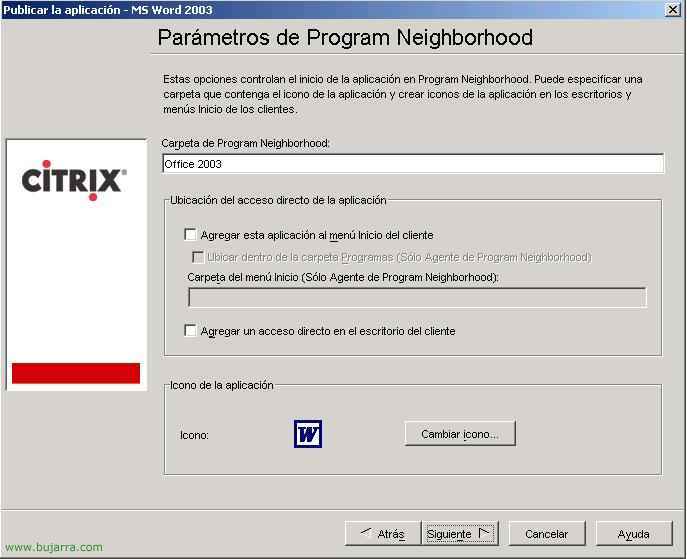
Once all of the above is configured, we are now going to publish the applications that we want clients to connect to, logically we must first install them on the Presentation Server, In my example, we'll make it easier for customers to access Microsoft Office applications 2003, First then, I will install the Office 2003 so I don't order the CD and I'll update it, Now we're going to publish the apps that I'm interested in users accessing

Hide Local Drives on Citrix Servers

This procedure explains how to hide the local drives of a Citrix server so that users when working against published applications cannot store anything on the server's disks. It is simply a matter of editing a policy template that we will then apply through a policy to the users we are interested in not seeing the server units. This policy can NOT be applied only to the server, rather, it is a user policy, so it must be applied to a user OU. Typically, the Citrix server has letters assigned to it other than C and D, the normal thing would be M, N… and so on respectively, then, We will run into a problem when applying the policy because our disk drives do not come. This document explains how to customize this policy with our disk drives

License a Citrix Presentation Server or Community

Esto sólo se debe hacer una vez, en uno de los servidores, lo haremos servidor de licencias. Necesitamos meter un fichero .lic en el servidor, para ello nos debemos registrar en la web de www.citrix.com y crearnos una cuenta (si es que no la tenemos creada) en MyCitrix. Creamos una cuenta para poder descargar la licencia y parches de servidor.

Configuring Packages Using Citrix Installation Manager

When we have more than one Presentation Server, We run into a problem, when it comes to installing the applications, we have to install them all and configure them the same, As many times as many servers we have. And they all have to be configured in the same way possible, It is best to create installation packages using “Installation Manager” from Citrix, This is, generate MSI packages, MSP or WFS. We can create them with the “Packager” that Citrix comes with or with any other software (e.g. with Veritas WinInstall – HERE). These packages would be created with the configurations already made and it would simply be placed on the servers that interest us.

Installing the following Presentation Servers

Whenever we are going to have an installation with more than one server, we have to follow this procedure, We should not do a full installation, With just one component (Presentation Server) It would be enough, and we would need to join the Community, With this, the installation of a second server would suffice, After that, we would need to configure more aspects such as load balancing or the applications themselves.

Create a website in Web Interface and connect to it

Una forma cómoda de que se nos conecten los usuarios, o por lo menos desde internet para no tener que hacer grandes configuraciones o explicaciones a ellos, es habilitar un sitio web para que se conecten a las aplicaciones. En este procedimiento se explica cómo habilitar este sitio y la forma de acceder como si fueramos un usuario final.

Configurations to be made on an additional server

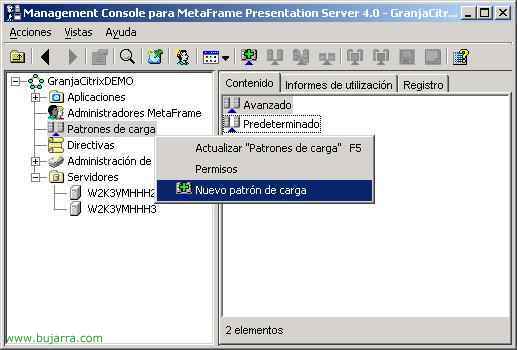
These configurations must always be done whenever we have more than one server in the community. It is simply about configuring a load balancing to manage the applications and performance on the servers, so that one server is not filled with users while another is available, we can create different load patterns to balance users. In my example, I will create a load balancing for a maximum of ten users per server. Then, when adding the second server to the community, I will have to configure the published applications to run on different servers, that is, If Word is published on one server 1, it will also need to be published on the other server 2 so that users can connect to either server interchangeably.. And in the end, we will configure a mobile profile for all users connecting to the Metaframe servers.. Imagine that they personalize a published application. (Word.) Yes […]