Installing and Configuring vSphere Auto Deploy

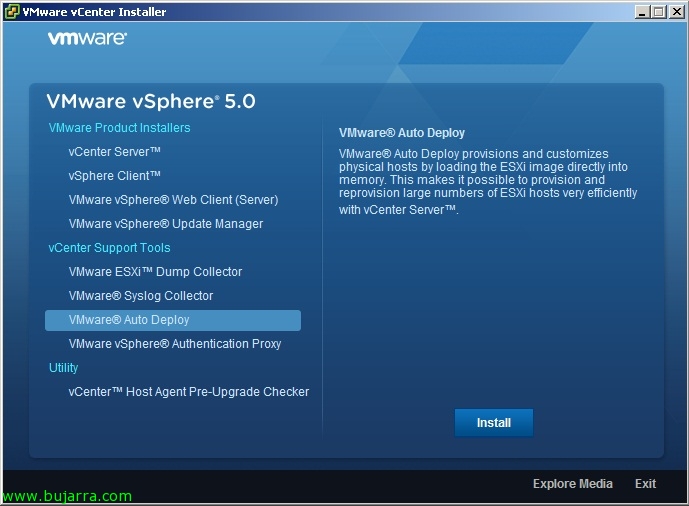
vSphere Auto Deploy will allow us to massively deploy ESXi hosts 5 via PXE on our network, for this we will need to previously have a custom ESXi image to send to our hosts, que la podremos generar con Image Builder. Auto Deploy se instalará en una máquina Windows si es que no tenemos VMware vCenter Server Appliance (that is already installed); and finally we will need Host Profiles; since through them we will apply the configurations on the hosts that boot through PXE (or alternatively we can use response files), these servers would not need a hard drive as they load it into RAM. This is totally ultimate in large environments to quickly and massively deploy ESXi hosts, being able to have centralized and non-distributed configuration (manual) on each host, having our ESXi image fully customized at the driver level, update…

VMware vCenter Server Appliance

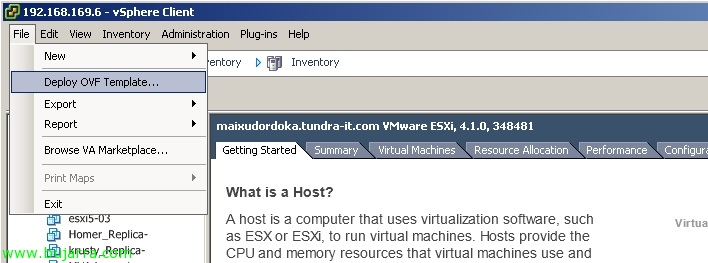
One of the new features of vSphere 5 es la disponibilidad de un nuevo virtual appliance con VMware vCenter Server 5 in it, es una máquina linux por lo que ya quitamos la necesidad de tener un Windows consumiendo licencias para gestionar un entorno virtual de VMware de forma centralizada. Este nuevo appliance virtual llamado VMware vCenter Server Appliance (vCSA) nos ahorrará dinero en gastos de implementación, mantenimiento y sobre todo licencias Windows, en este documento veremos cómo podemos desplegarlo en apenas unos minutos (la instalación y configuración),

Upgrading VMs to vSphere 5 with Update Manager – Upgrade VMware Tools and Virtual Hardware Upgrade

To continue our migration to vSphere 5, once we already have the VMware vCenter server on the version 5, we have updated to VMware Update Manager 5 and all our ESXi hosts are already running the ESXi hypervisor 5, we will be able to upgrade the VMware Tools to the virtual machines as well as then upgrade the virtual hardware version of the version 4 or 7 to the version 8. We can do it manually VM by VM or automate it with Update Manager and update it in our environment in an orderly manner.

Actualización de un host ESXi 4.x a ESXi 5 with Update Manager

This will be the process of upgrading our hosts to the new VMware vSphere environment 5, we will be able to migrate ESX hosts 3.5, ESX 4.0 and ESX 4.1 to ESXi 5.0 and upgrade from ESXi 3.5, ESXi 4.0 and ESXi 4.1 to ESXi 5 automatically, ordered and managed; distributing the ESXi base image 5 on any of them keeping their settings. To do this, we will have to rely on VMware Update Manager, This document shows the steps we will need to update our hosts to the latest version.

Installing and Configuring VMware vSphere Update Manager Download Services

If you have a vCenter Update Manager server and it does not have Internet access (for whatever reason: Safety Issues…) to download the security patches of our vSphere environment we can use an intermediary server that downloads the updates and then passes them to the vCenter Update Manager server, in this document we will look at the installation and configuration of VMware vSphere Update Manager Download Services (UMDS).

Installing VMware vSphere Update Manager 5.0

In this document, we will see the installation of the VMware Update Manager component in vSphere 5, it will allow us to keep our VMware virtual environment updated, in this new version, only ESXi servers and VMware virtual appliances with their latest updates and upgrades will be supported, previously, we could also apply patches to Microsoft virtual machines & Linux. After installing the service, each client connecting to the vCenter will need to download and enable the Plugin to manage VUM,

Upgrading an ESX host(i) 4.x a ESXi 5 manually

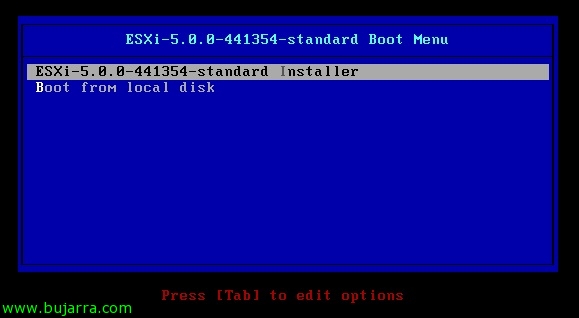
In this document we will look at one of the ways to update our ESXi 4.x hosts (we could also migrate from ESX 4.x to ESXi 5.0 and ESX(i) 3.5 to ESXi 5), it will be in a manual/interactive way by entering the ESXi cd/dvd/usb 5.0 on the ESX host itself(i) 4.x. This is one of the simplest ways for smaller environments, In future documents we will see other forms of updates. Prior to the upgrade we will have verified that our hosts support the new hypervisor using Agent Pre-upgrade check,

vCenter Host Agent Pre-Upgrade Checker

Before updating our VMware vSphere infrastructure to VMware vSphere version 5 (our hosts to ESXi 5.0) we must run a utility available on the VMware vSphere DVD 5, where we can verify without service interruptions if our ESXi hosts are compatible for a potential version upgrade (from VMware ESXi 4.x to VMware ESXi 5.0) thanks to the vCenter Agent Pre-upgrade Check tool.