Update VMware Tools and Automatically Upgrade Virtual Machine Hardware with Update Manager

This would be the last step for a successful migration of our VMware vCenter virtual environment 2.5 a VMware vCenter Server 4.0, once we already have the VMware vCenter Server in the version 4.0, we have migrated the VMware Update Manager to VMware vCenter Update Manager 4.0 and all our ESX hosts are already with ESX 4.0, we will be able to upgrade the VMware Tools to the virtual machines as well as then upgrade the virtual hardware version of the version 4 to the version 7.

Upgrade ESX 3.x to ESX 4.0 con VMware vCenter Update Manager

We continue in the process of migrating the VMware Virtual Infrastructure environment 3 to VMware vSphere 4. We first upgraded the VMware VirtualCenter server to VMware vCenter Server, later we will have migrated the VMware Update Manager component to VMware vCenter Update Manager 4.0. After this, we will now be able to upgrade from ESX to the 4.0. All this, of course, taking into account whether our ESX hosts are fully compatible with the new version, to do this, check it in the VMware HCL.

Migrate VMware Converter Enterprise to VMware vCenter Converter 4

Like VMware vCenter Update Manager, if we were using VMware VirtualCenter in our environment 2.5 the VMware Converter Enterprise, we need to update it to the latest version in order to use it in our new VMware vCenter environment 4.0. If we update the, We may continue to retain existing configurations in the previous environment or logs… It will be a process that we can carry out at any time, once we already have our VMWare vCenter server in the 4.0, We can upgrade it when we need it, once we update the Update Manager or at the end of the migration process.

Migrate VMware Update Manager 1.0 a VMware vCenter Update Manager 4.0

After migrating our VMware vCenter server from the 2.5 to the version 4.0 (HTTP://www.bujarra.com/?p=2700) we have to update the other components that we have installed, in this case we will update the VMware Update Manager environment 1.0 that we had in VMware Virtual Center 2.5 to the new environment for use with VMware vCenter 4.0 (vSphere), called VMware vCenter Update Manager 4.0. This will be a process to be performed before proceeding with the migration of the environment 2.5 a 4.0, since after updating the Update Manager, we will update ESX hosts from version 3.x to the 4.0, and then the virtual machines (both the hardware version of the 4 to the 7 and VMware Tools to the latest version). All this in future documents.

How to Upgrade VMware vCenter 2.5 to VMware vCenter 4.0

If we want to have the new VMware virtualization technology, vSphere, with the new version of VMware ESX hosts, we will need to update our VMware vCenter Server virtual infrastructure management server. And this will have to be updated before updating our ESX host to the latest version. This procedure shows the steps to upgrade a VMware VirtualCenter server from the release 2.5 to the 4.0.

Deploying ESX servers in bulk

If we are facing an installation of many ESX servers and we have to make a new installation on the servers we have, We can or do it by hand one by one, inserting the CD and completing the wizard or, use a virtual appliance that will allow us to deploy new ESX servers per network, all of them already configured with the options that interest us. This will save us a lot of time, is a virtual appliance called EDA or ESX deployment Appliance available on the VMware Virtual Appliance Web.

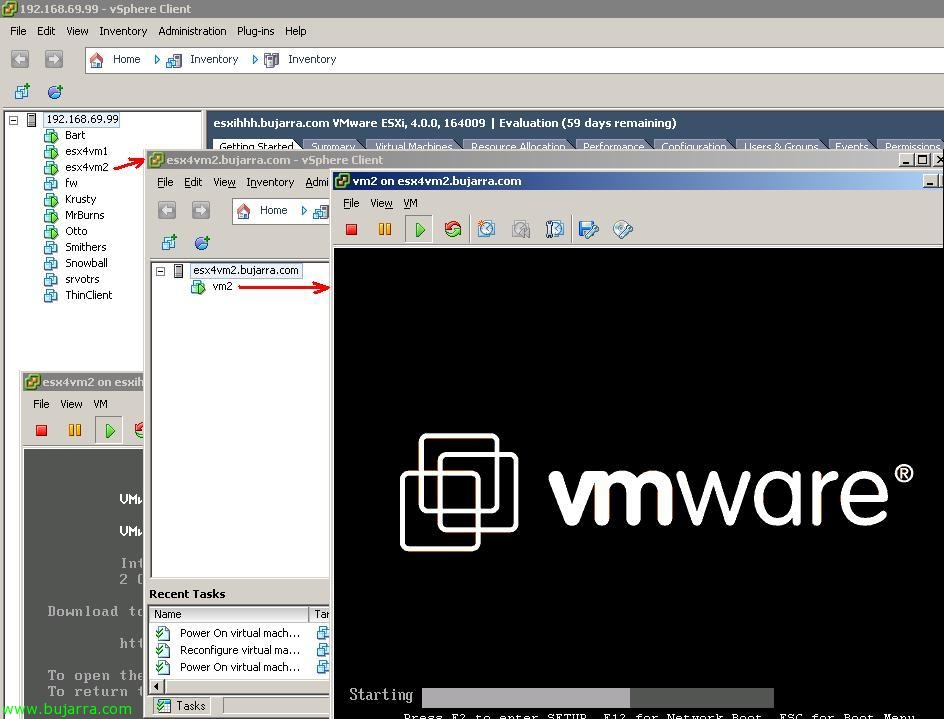
Virtualize VMware ESX 4 on a virtual machine and run virtual machines within it

Yes, as the title says, a VMware ESX can be virtualized 4.0 inside another VMware VM, and also, be able to create and boot virtual machines within our virtual VMware ESX!!! Logically we are talking about a test environment and never for production, as it is ideal for setting up your own lab if you don't have enough VMware ESX-compatible hardware 4.0 and want to try out the new features (Fault Tolerance or FT, vNetwork Distributed Switch or DVS, Host Profiles Linked VC… Let's go vSphere) or if you want to perform a testing lab… it is also done in a few very simple and quick steps.

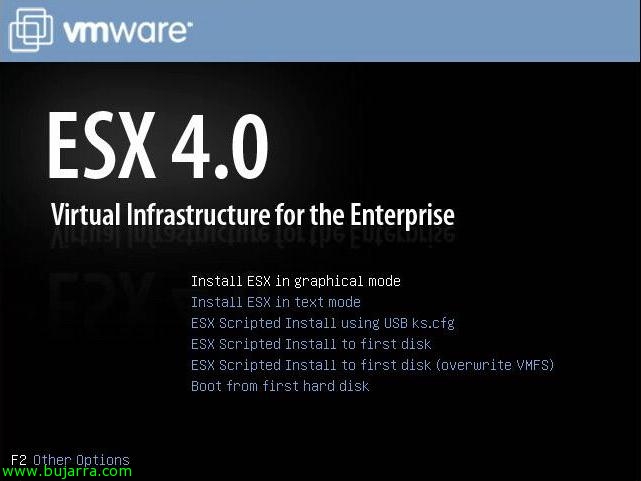
Installing VMware ESX 4.0

Simple document on how to perform a basic installation of a VMware ESX host or server 4.0, It will be a simple installation with no setup during installation more than the basic one. We should keep in mind that before installing VMware ESX on any physical server, we must always enable the virtualization technology of our processor, either Intel VT or AMD-V at the server BIOS level.

Recreating the descriptor file from a .vmdk file

There are times, that either due to a poorly deleted snapshot or an unexpected shutdown of the VM the .vmdk of the same is corrupted losing the information of the VM. “configuration” and leaving us the raw virtual hard drive; normally, midisco-flat.vmdk Si nos ocurre esta situación, The most likely thing is that the virtual machine will give us the error “File not found” When trying to start. The procedure to follow is to recreate the descriptors() of the virtual disk(s).