Backing up VMware ESXi configuration

Once our hosts have been configured, it is advisable to keep a backup copy of their configuration, an easy way to back up the entire configuration of an ESXi host is by using the VMware vMA appliance or by using the VMware vSphere CLI (vCLI). Once we have the backup, we can restore it if necessary in a simple way, we will also see another command to reset ESXi hosts to factory values.

Using VMware Compliance Checker

The past 19 April, VMware introduced VMware Compliance Checker, a free VMware tool (written in Java) that will help us verify the security of our VMware hosts (ESX or ESXi), recommended as one of the best practices to be carried out in our environment in order to secure or detect problems, obtaining a detailed report of the recommendations to be made on each host.

Using VMware Go

Today we can see on the Shavlik website that it has been acquired by VMware, so I present to you (for those who may not know) VMware Go, that it is a tool developed by both companies in collaboration, it is free and online, that allows limited management of our VMware virtual infrastructure, it is a tool designed for new and small clients who are entering the new world of VMware and want to start with simple management. This tool has its free version (which is what we will see in this document) and the paid VMware Go Pro version which will address the shortcomings of its free version.

Using VMware Storage IO Control

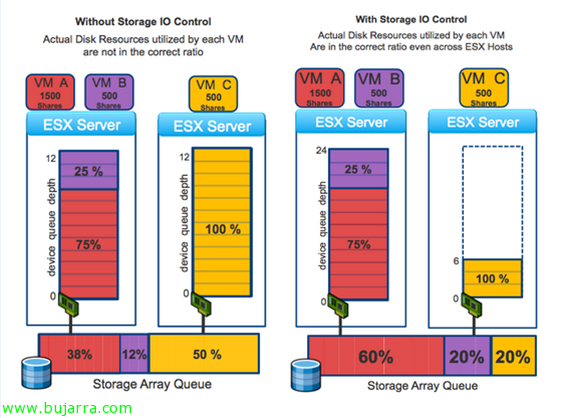
One of the new features of vSphere 4.1 is VMware Storage IO Control (SIOC) that will allow us to improve disk performance when using resource allocations on virtual machines. In vSphere we can assign different priorities to a virtual machine at the CPU level, RAM and disk; as well as CPU and RAM are prioritized only by the host that runs them, on disk access (shared) prioritize it proportionally among the rest of the hosts. Requirements: vSphere 4.1 Enterprise Plus, a single vCenter will manage the warehouses, Supported for FC and iSCSI (no NFS or RDM/RAW), Multiple Extensions Not Supported.

Using VMware ThinApp in VMware View 4.6

In this document, we'll look at how to integrate into VMware View 4.6 the applications we can distribute with VMware ThinApp, With this we will be able to achieve a clean distribution of equipment and distribute applications that users need through streaming with all the advantages that the combination of both technologies entails,

Using VMware View Composer 4.6

Con VMware View Composer conseguiremos distribuir escritorios a los usuarios a partir de una misma imagen para todos, sin tener que andar clonando una máquina virtual origen, or have one full virtual machine per user, This is, los escritorios que generemos a partir de esto no tendrán un disco duro virtual, If not a link’ to a replica of the original virtual hard drive. With this we will achieve impressive storage savings, For example, if we design that our Desktops we want them to have 20Gb of disk, You don't need to allocate that amount to each VM, if, for example, we are going to distribute 50 Desks: 50MV x 20Gb = 1TB of space for VDI or VMware View environment only, as this does not make much sense, VMware View Composer is used to deploy Desktops from a single image, these new Desktops will occupy only their swap memory plus space (optional) What […]

Using Offline Desktops in VMware View 4.6

Today we'll look at how to have VMware View desktops offline 4.6, for this we will need a VMware View server 4.6 Connection Server with the Transfer Server role. This server will simultaneously allow up to 20 Desktop Transfers (We can assemble another one for more capacity, High availability or balancing). With this we will be able to allow our users to work offline by downloading the desktops (by composer) on your laptop and when you are back online, upload that desktop back to the VMware View environment.

Using Events in VMware View 4.6

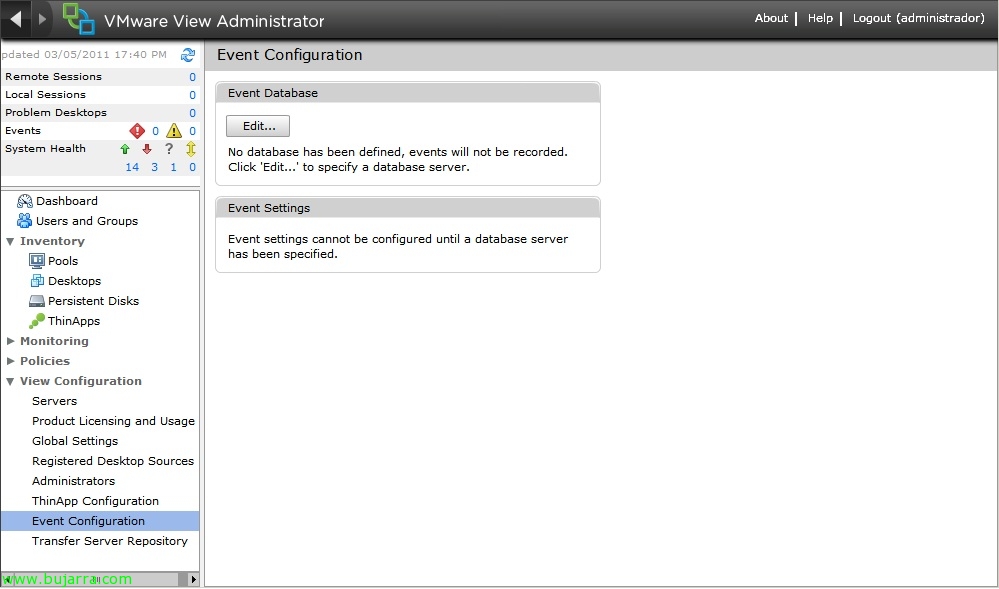
En caso de necesitar una gestión de eventos en el entorno VMware View 4.6 deberemos configurarlo de forma manual, con el fin de almacenar los LOG’s de nuestro entorno VDI y poder obtener más información en caso que tengamos problemas. En este breve documento configuraremos los eventos de VMware View 4.6 contra una base de datos SQL Server.

Allowing connection to our VMware View desktops 4.6 from abroad

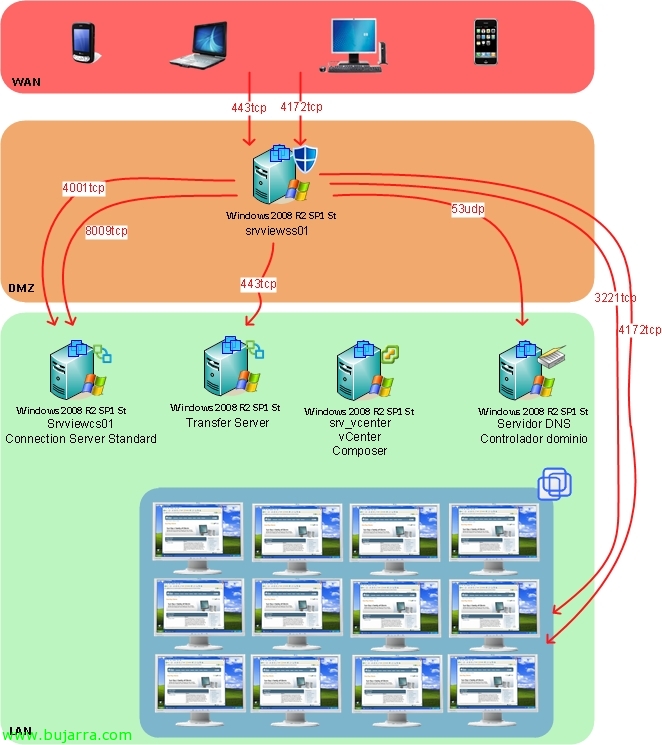
By default, PCoIP connections are direct between the VMware View client and the final virtual desktop (where the View Agent resides), this from the version 4.6 changes allowing you to connect through a server that acts as a reverse proxy as it does not ensure the connectivity of the UDP frames that are sent if you do not redirect PCoIP through the Security Server. This Security Server will allow us to connect from the outside without VPN's and without having to open PCoIP to each virtual desktop, since he will be in charge of connecting to the Connection Server and the Connection Server to the virtual desktop.

Using VMware View GPO's 4.6

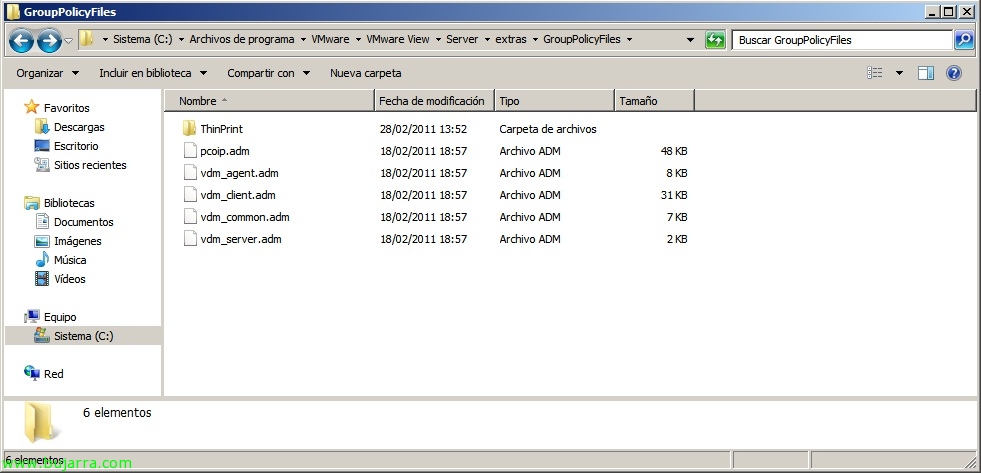
In this document, we'll look at the policies that we can apply at the Active Directory level to our VMware View environment, since we have various administrative templates to be able to manage the agents, clients, Servers, common configuration and especially if we need to optimize the PCoIP protocol. The document shows all the existing GPO's to be able to centrally manage our VMware View 4.6, Of course, in English 😉