Installing and Configuring VMware View Connection Server Security Server 4

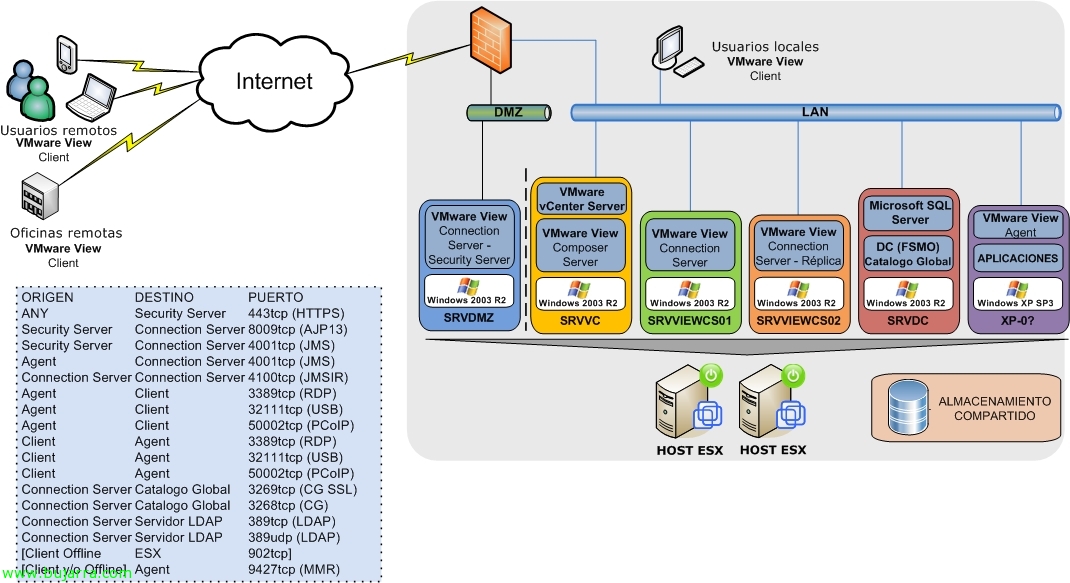
If we want to give external access to our organization in a completely secure manner, it is necessary to install the VMware View Security Server, this server will encapsulate all traffic via SSL from the client machine to the desktop, using RDP, Of course. PCoIP will not work over the Internet, as it would require mapping the 50002 tcp of each desktop; ideal for a WAN or VPN connection, but not for connecting over the Internet. So assuming that, we show what the installation and configuration of the DMZ server is. This server MUST not belong to a domain.

Installing and Configuring a VMware View Connection Server 4

Se debe instalar por lo menos un segundo servidor VMware View Connection Server para disponer de alta disponibilidad o balanceo de carga, This is called having a replica server. When installing Connection Server in Replica Mode, an ADAM instance is created (Active Directory Application Mode) and the View LDAP data will be initiated that will allow all Connection Servers to be kept with the same information, ua that will use the same Active Directory replication technology to replicate data between the Connection Servers. Logically, before carrying out this installation, we will need to have a Connection Server installed.

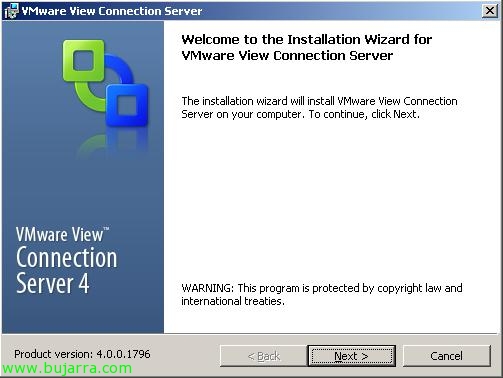
Installing and Configuring VMware View Connection Server 4

In this document we will look at the installation of your new broker and connection server, VMware View Connection Server, This will be the server in charge of managing the connections and the virtual or physical desktops. In this document, we'll look at the installation for the first Connection Server, although later we can have more servers to have a high availability environment or isolate a Connectio Server in the DMZ to secure external connections.

Getting Started with VMware View 4.0

VMware Brings Its New Version of VMware View. VMware View is VMware's solution for virtualized desktop use, where it integrates seamlessly with our VMware vSphere virtual environment 4, with our ESX hosts 4 and vCenter Server 4. Eye, to install this new version, vSphere Update is recommended 1 installed (on hosts, vCenter, Plugins…). The main new features of VMware View Manager 4.0 son: – VMware View with PCoIP protocol to replace RDP, Improved possibilities and performance. Eye! over the internet doesn't work, LAN or WAN only :'( – VMware View Display to support multi-monitor mode (until 4 Monitors!) – VMware vSphere and VMware Infrastructure 3.x support – What's new in authentication: Single Sign On, Smart Card Use and Policies.

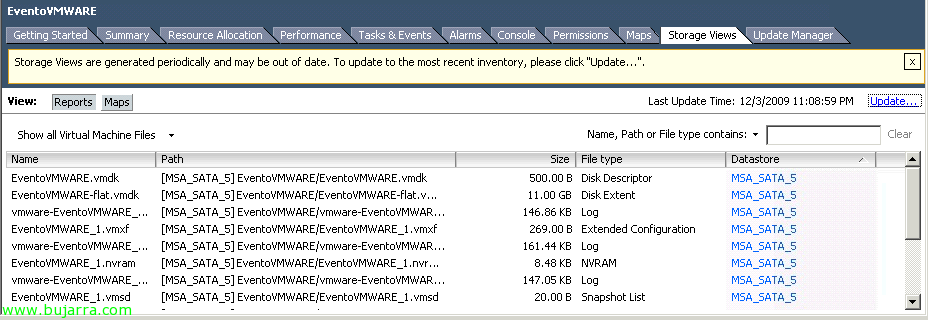
Extending System Partition After a .vmdk Extension – DELL Extpart Tool.

Today they have discovered a tool that without a doubt, It is going to solve many headaches for those of us who are day to day with virtualized environments. This is the DELL tool, EXTPART. Although at first glance, it seems that it will allow us to do operations with Linux EXT partitions (I say it by the name), what it will allow us to do is increase the size of the system partition of a VM, as long as, Let's have room without winning from the Vmdk (Tratariendo de máquina VMware), and best of all, Hot!!!

Uso de VMware Linked Mode

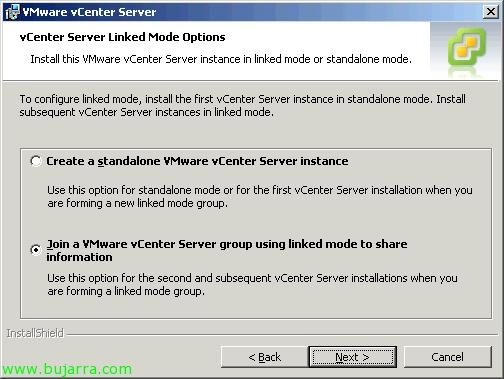
Otra de las novedades de VMware vSphere es la posibilidad de unir nuestras instalaciones que tengamos con diferentes VMware vCenter, sean del mismo dominio o de diferente (siempre que tengamos los permisos correspondientes). Con VMware Linked Mode podremos gestionar varias instalaciones simultáneamente de vCenter, estén en la misma red o no, con esto conseguimos una gestión mucho más sencilla y cómoda.

Uso de VMware Guided Consolidation

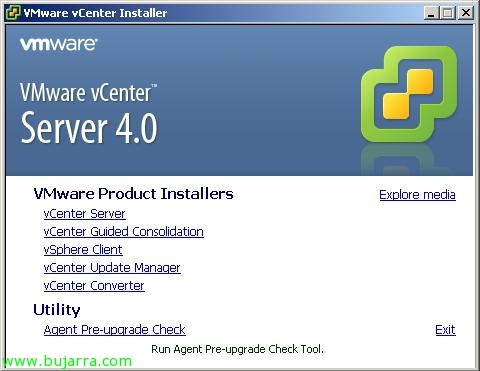
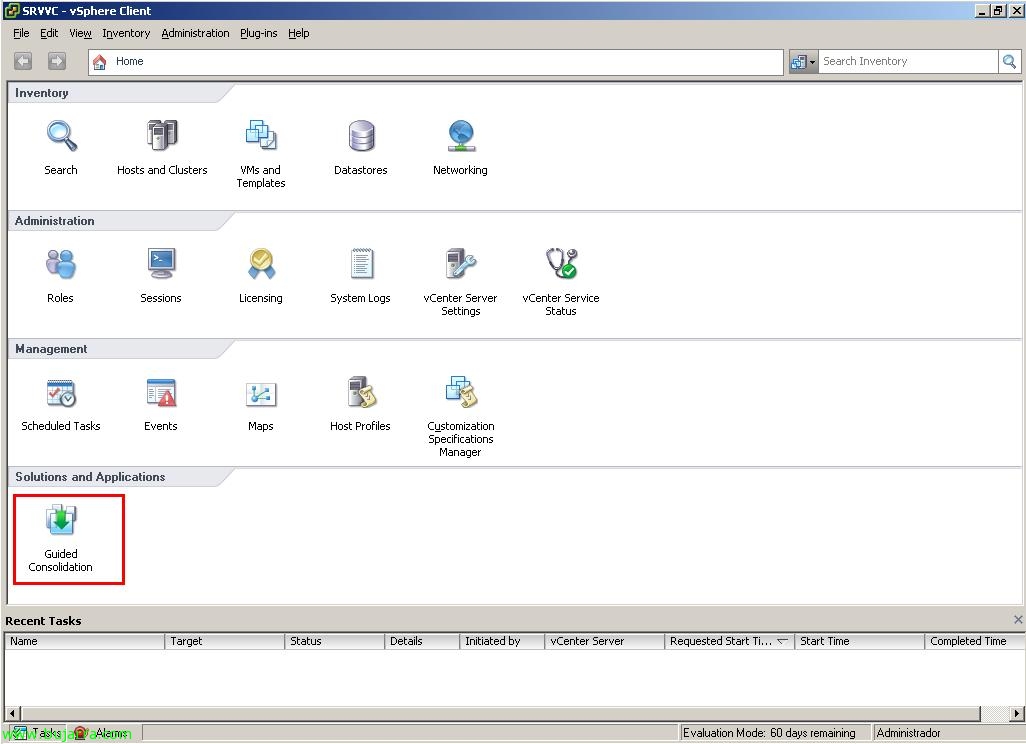
In this document we will see one of the VMware products that will help us virtualize our physical environment. VMware currently has two tools to measure what resources it will need when virtualizing a physical environment. The partner tool VMware Capacity Planner and this free and much more basic tool called VMware Guided Consolidation. It is a tool that has three processes: 1.- Search: Search for physical computers on the network to be analyzed. 2.- Analyzes: The selected physical equipment is analyzed and performance data is obtained for each computer. 3.- Consolidate servers: The data obtained is compared with the resources available in the virtual environment and virtualized in the virtual environment with recommendations on ESX hosts.